Follow-ups and alerts
A follow-up saves the context of an operator report so you can reopen it without rebuilding the query. If you assign an end date, you can also configure alerts to watch for changes until that date.
Follow-ups originate from the Individual, Compare multiple, and Historical views in Reports by operator. This page explains how to manage them; it does not repeat how to generate or interpret each report.
Save a follow-up
- Generate the report you want to keep.
- Click Save follow-up.
- Review or change the suggested name.
- Choose whether to save it with or without an end date.
- Click Save.
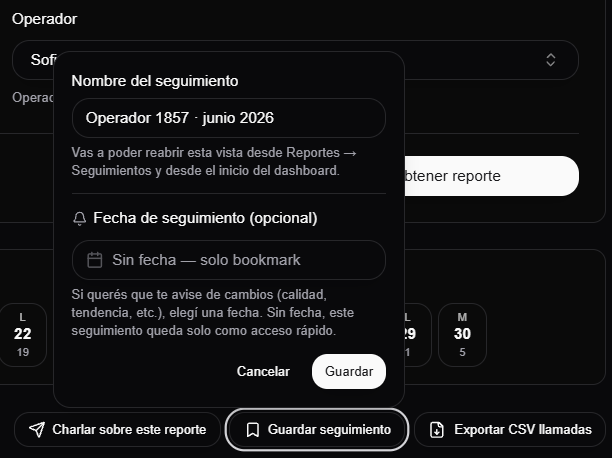
The follow-up retains the parameters required to rebuild the view. To learn what each mode retains, see Save a follow-up in Reports by operator.
Decide whether it needs an end date
| Status | Purpose | Alerts |
|---|---|---|
| No end date | Works as a shortcut or bookmark. | Alerts cannot be configured. |
| Active until a date | Lets you reopen the report and watch for changes through the selected date. | You can add and delete alerts while it remains active. |
| Expired | Retains access to the report and the alerts that were configured. | Alerts are no longer evaluated and become read-only. |
The end date is fixed when you create the follow-up. If you saved it without a date or it has expired, use Copy and choose an end date to create another configurable follow-up. The copy retains the report but starts without alerts.
If you will need alerts, choose the end date when saving or copying. A follow-up created without a date remains a quick-access bookmark.
Open Reports > Follow-ups
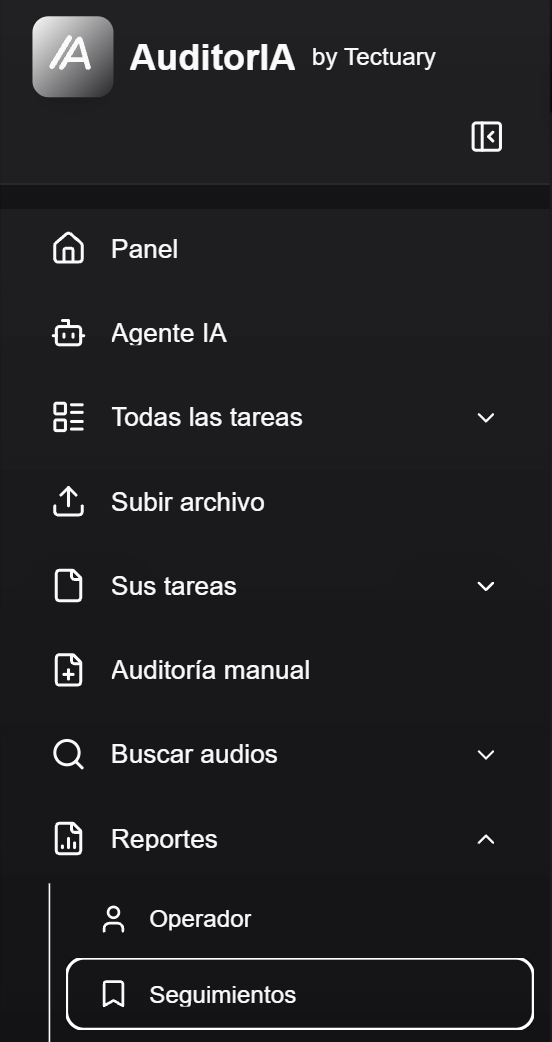
From the sidebar, open Reports > Follow-ups.
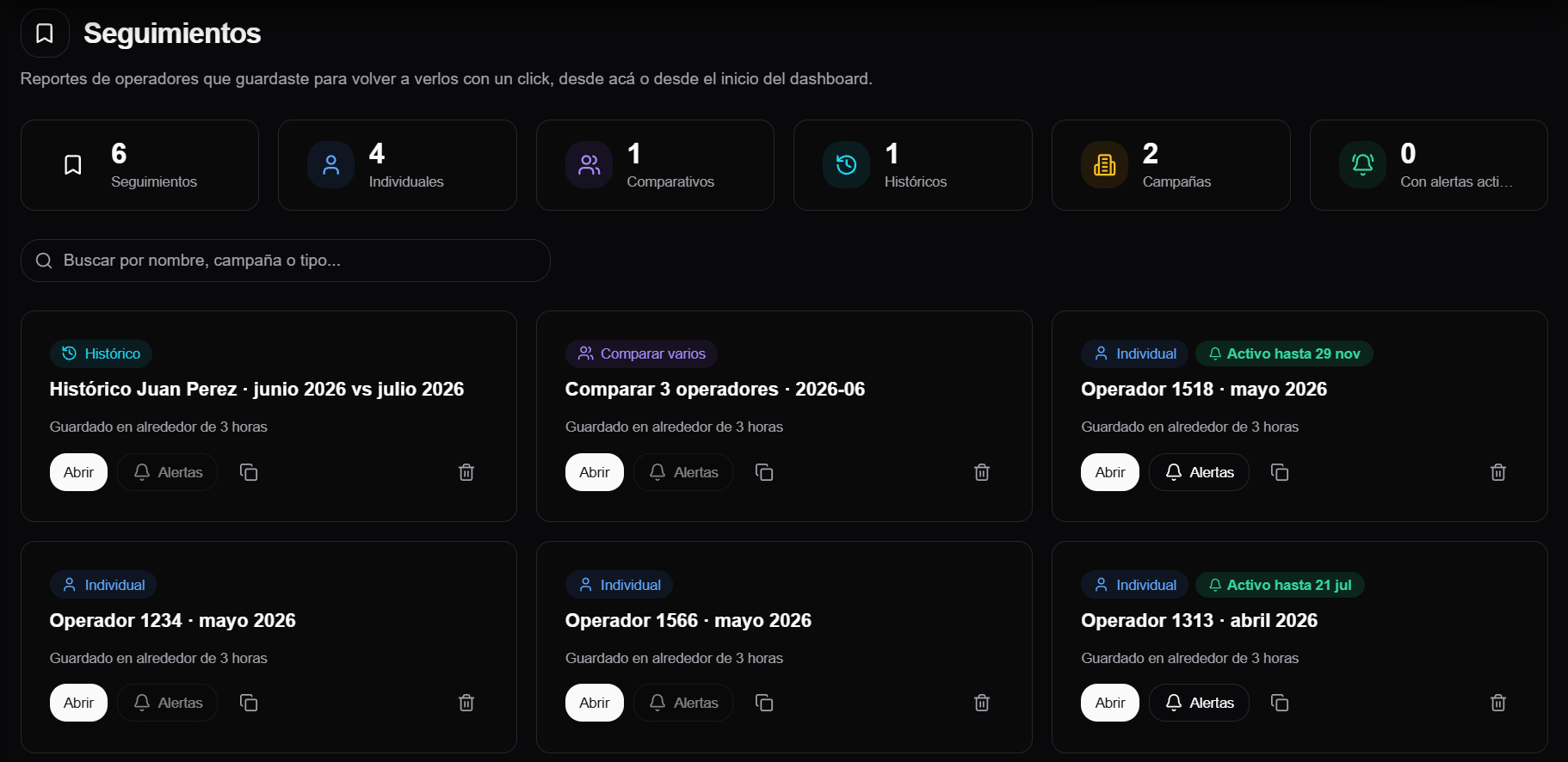
The summary at the top shows:
- total follow-ups;
- individual, comparative, and historical follow-ups;
- number of campaigns represented;
- follow-ups with active alerts.
Use search to filter by name, campaign, or type. The summary metrics cover all your follow-ups, not only the search results.
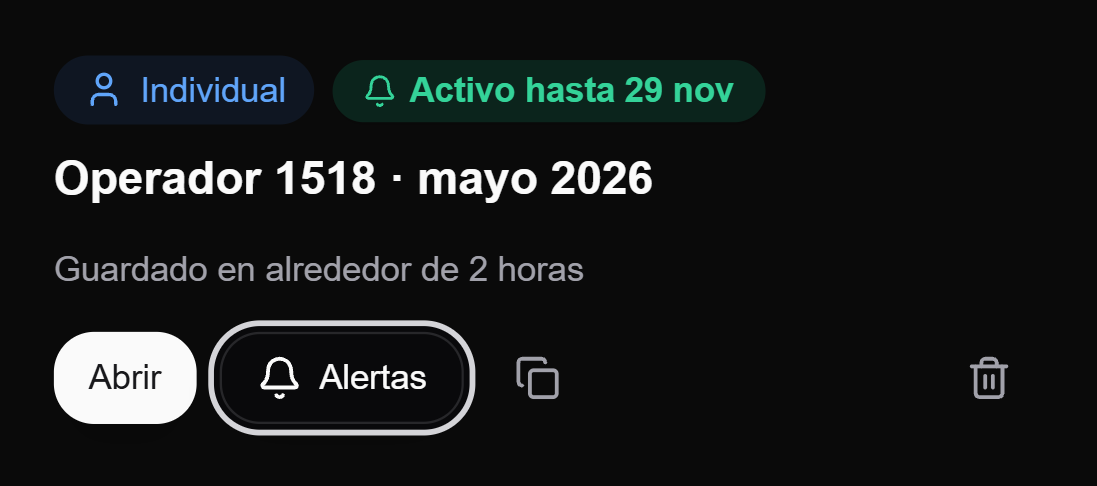
Each card shows the report type, name, campaign, and, when applicable, an Active until... or Expired status. It also shows the number of active alerts when there are any.
Card actions
| Action | Result |
|---|---|
| Open | Rebuilds the saved report. |
| Alerts | Shows configured alerts and lets you add or delete rules while the follow-up is active. |
| Copy | Creates another follow-up with the same report and no alerts. You can choose a new end date while copying. |
| Delete | Deletes the follow-up after confirmation. |
For a follow-up without an end date, Alerts is disabled. For an expired follow-up, the dialog opens in read-only mode: you cannot add, change, or delete alerts.
Create an alert
- In an active follow-up, click Alerts.
- Click Add alert.
- Under What do you want to monitor?, choose the type of change.
- Complete the relevant condition and value.
- If the follow-up contains multiple operators and the alert type supports it, select one operator or All (pooled).
- Choose Email, In-app notification, or both.
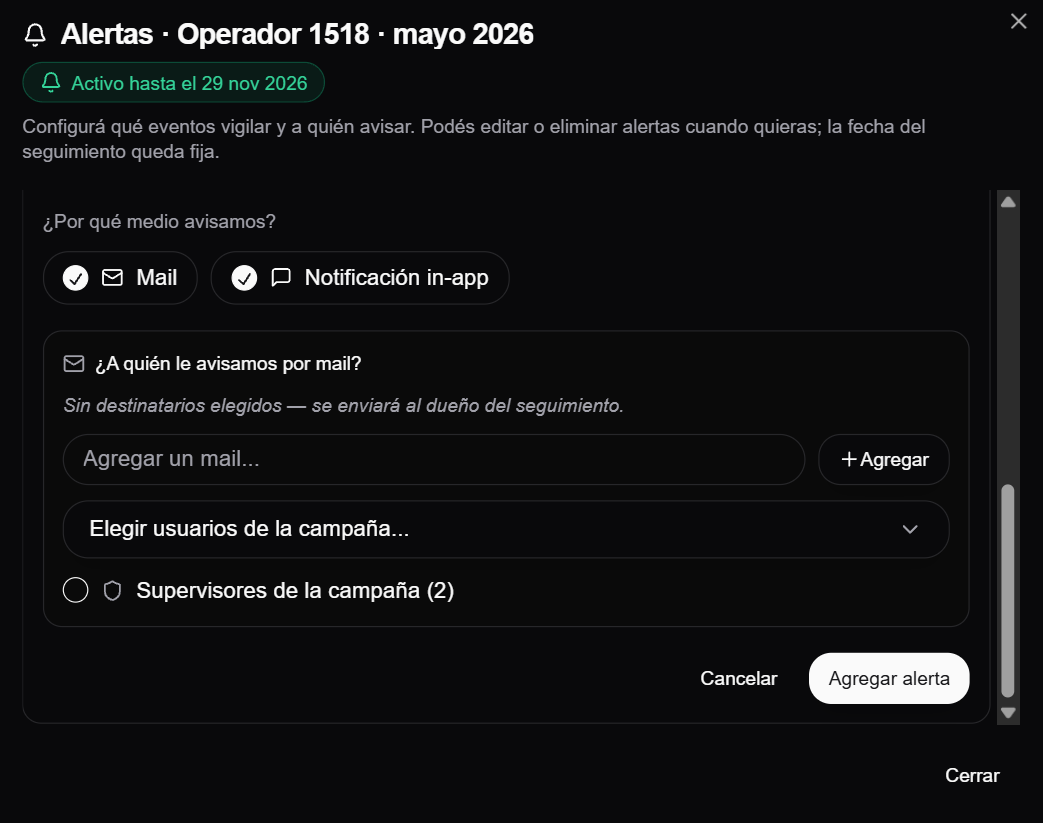
- If email is enabled, choose the recipients. If you do not add recipients, the email goes to the follow-up owner.
- Click Add alert.
- Review the condition and recipient summary.
- Confirm with Yes, save alert.
In-app notifications go to the follow-up owner. For email, depending on the available data, you can use the owner, manually entered addresses, campaign users, or campaign supervisors.
The form first shows the available alert types and then changes its fields according to the selected type:
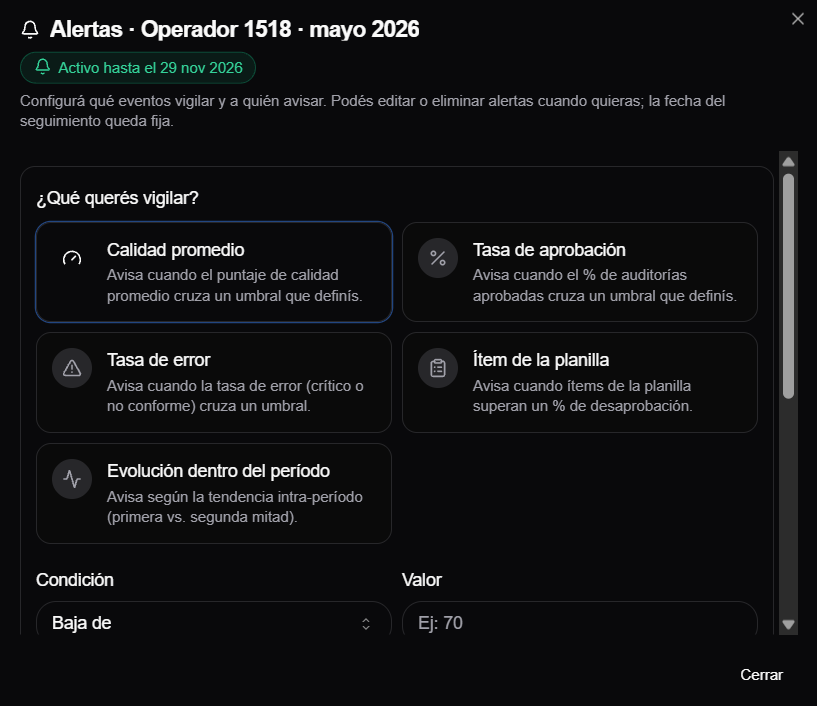
-
Average quality and Approval rate use a condition and a numeric value.
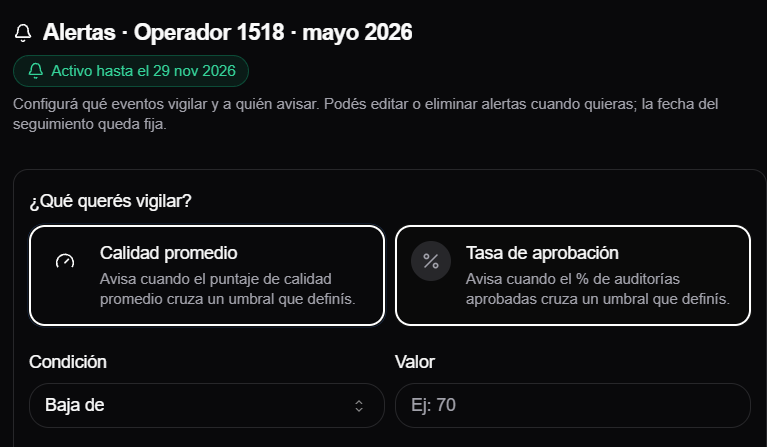
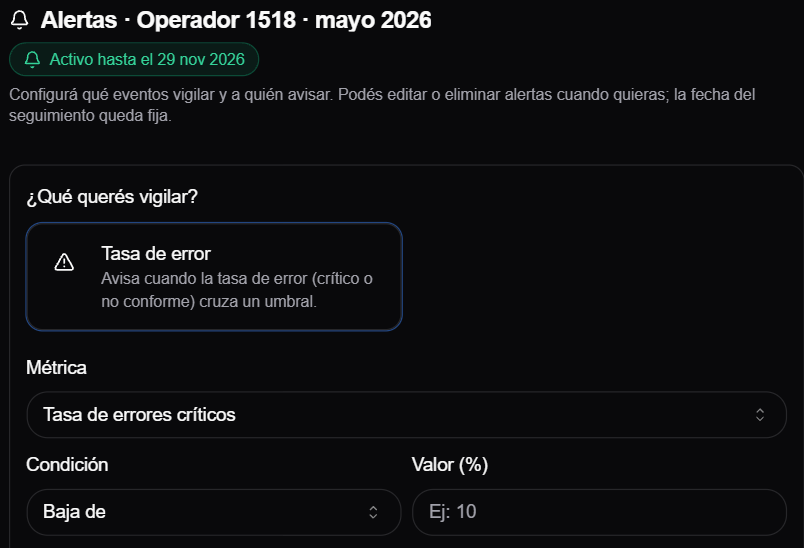
-
Error rate adds the metric used for the threshold.
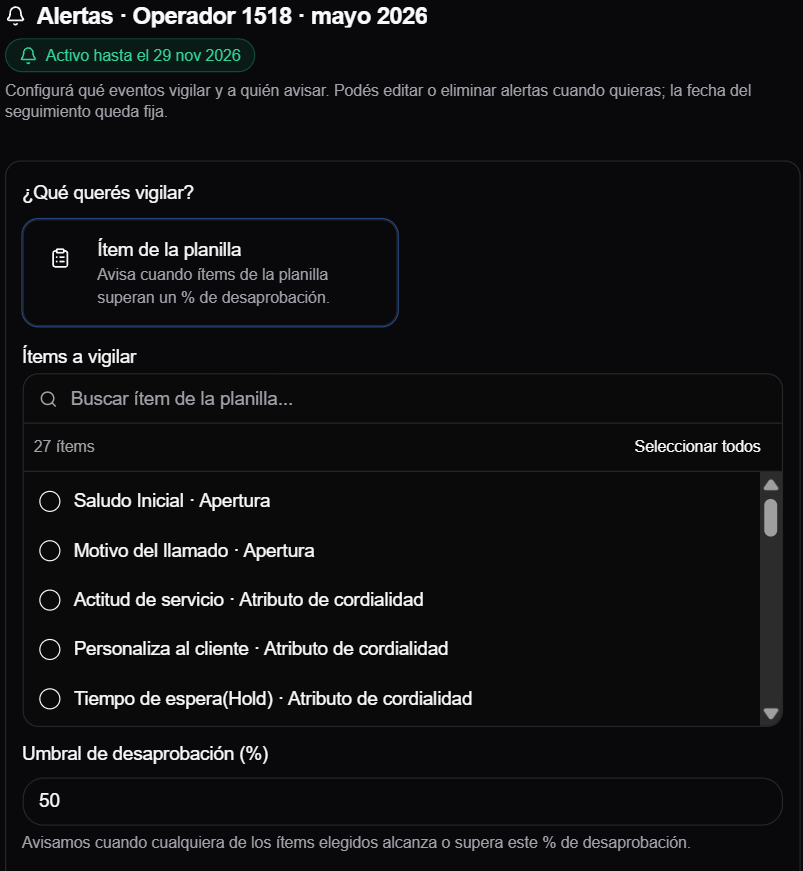
-
Scorecard item lets you search and select items, then define the disapproval percentage.
-
Evolution within the period asks which trend to monitor.
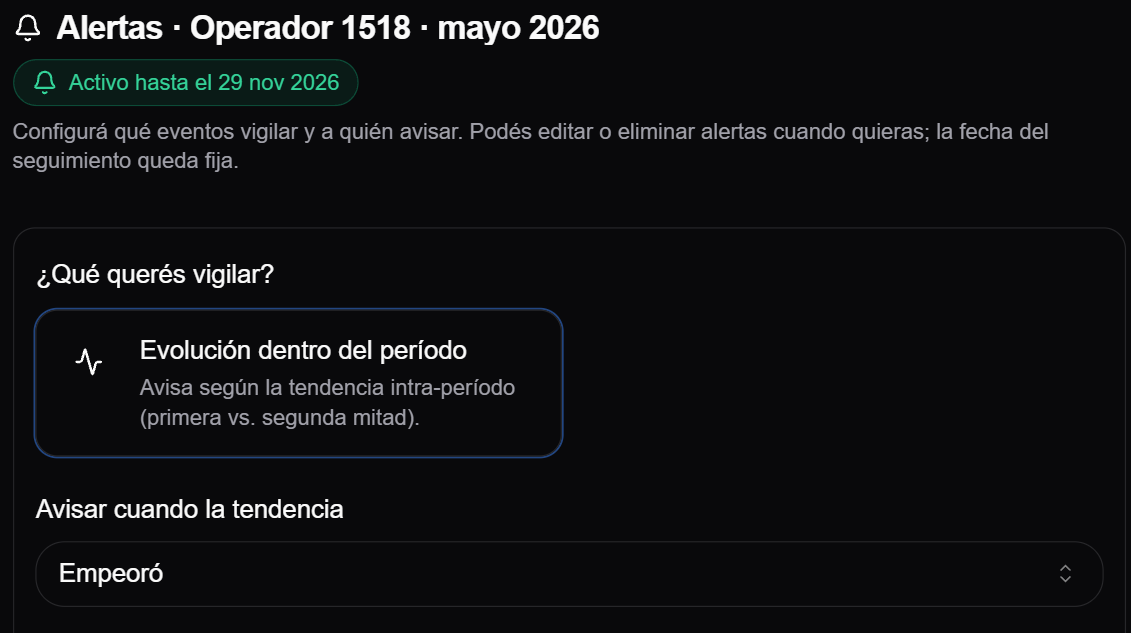
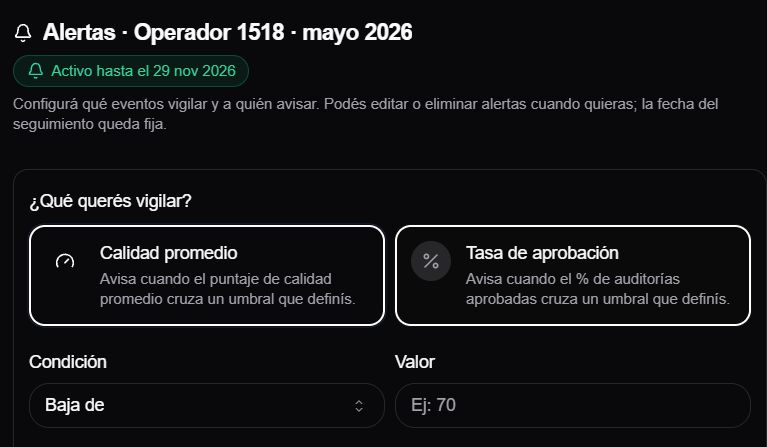
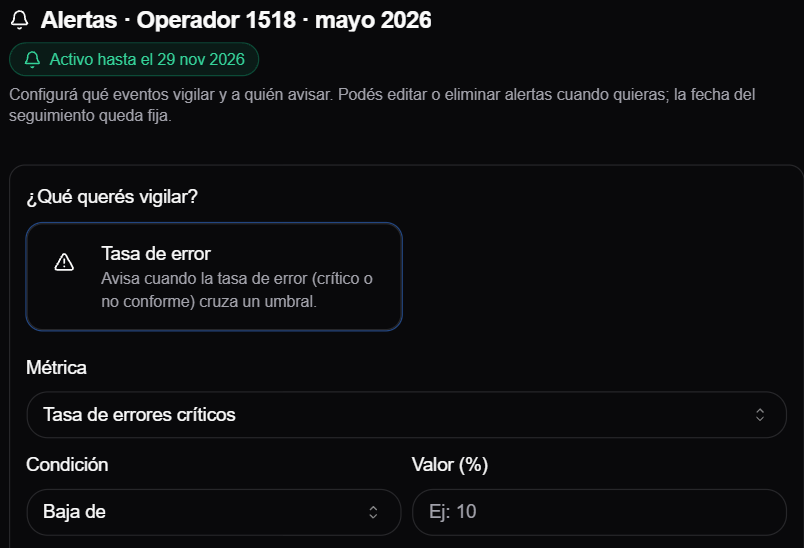
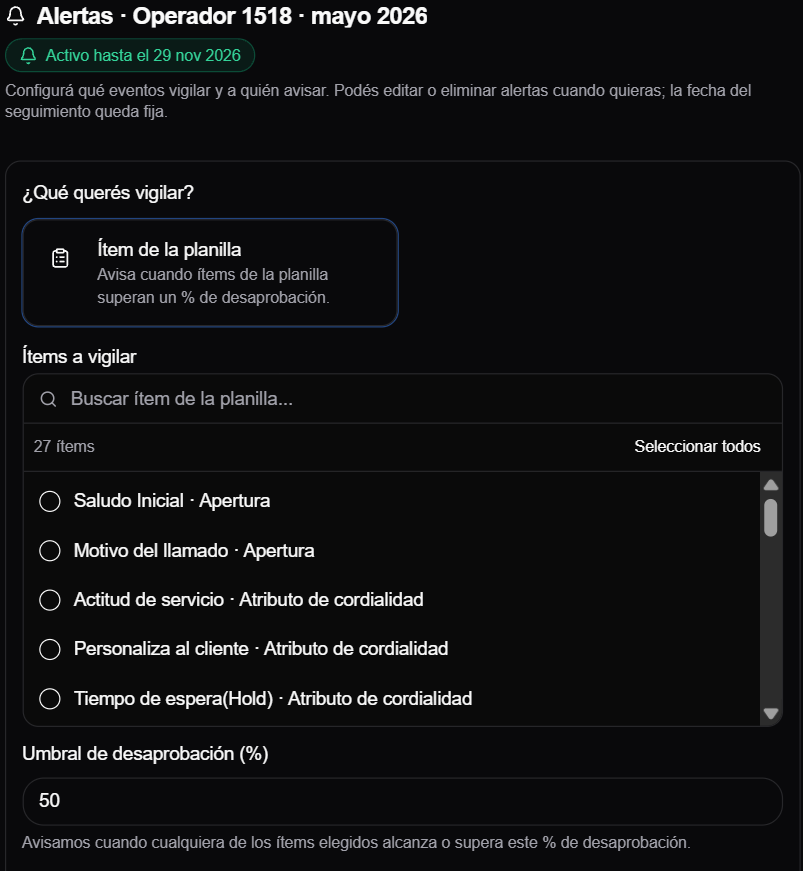
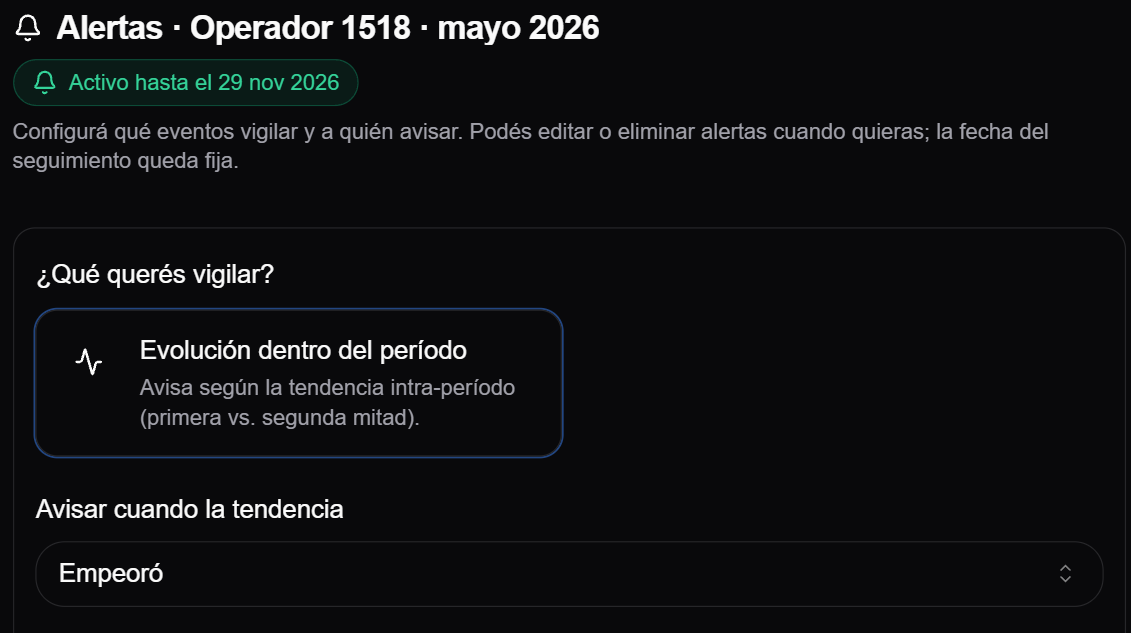
At the end, choose the channels and recipients. The screen offers email and in-app notification; email delivery depends on alert processing and configuration, not on saving the follow-up.
Alert types
| Type | What it monitors |
|---|---|
| Average quality | Whether the average score crosses the defined value. |
| Approval rate | Whether the percentage of approved audits crosses the defined value. |
| Error rate | Whether the critical-error or non-compliant-case rate crosses the threshold. |
| Scorecard item | Whether one or more items reach the selected disapproval percentage. |
| Evolution within the period | Whether the trend from the first half to the second half improves, worsens, or changes. |
| Skill change between periods | Whether an item improves or worsens between the two periods. Available only for Historical follow-ups. |
Review and delete alerts
For each rule, the Alerts dialog shows:
- the metric or item being monitored;
- the configured condition;
- whether notifications use email, in-app, or both;
- a recipient summary.
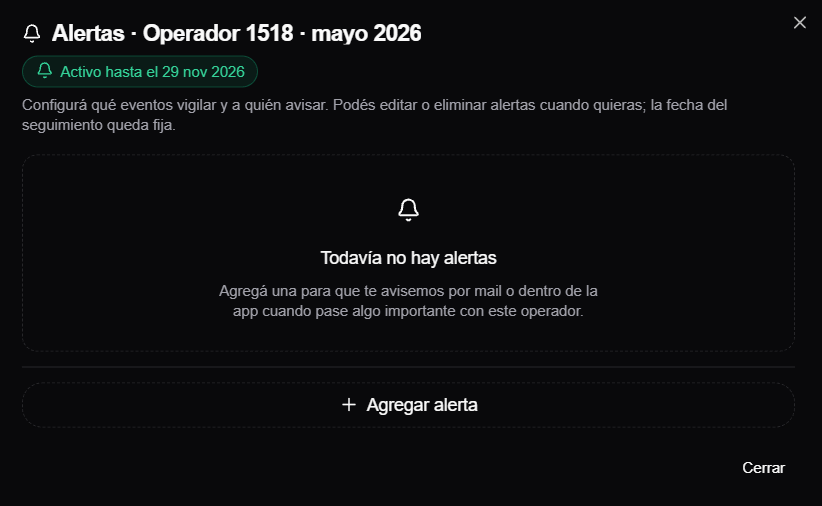
When no rule has been configured yet, the dialog shows an empty state with Add alert.
While the follow-up is active, you can delete an alert and create another with the configuration you need. After the follow-up expires, alerts remain visible but are no longer evaluated and cannot be changed or deleted.
Interpret an alert
An alert means a condition was met; by itself, it does not prove a performance improvement or problem.
Before making a decision:
- open the follow-up;
- check how many audits make up the result;
- compare equivalent samples;
- drill down to the tasks that explain the metric;
- use Historical when you need to compare periods.
A variation based on very few audits or very different sample sizes may not represent a stable change.
If you cannot configure an alert
- Confirm that the follow-up has an end date and has not expired.
- If it has no date or has expired, use Copy and choose a future date.
- Confirm that your role can access call reports. See I cannot see an option the manual mentions.
- If scorecard items or recipients are unavailable, verify that the campaign has that information configured.