Marked tasks report
The marked tasks report analyzes a manual group of calls or chats selected from task lists. Use it for specific samples, claims, doubtful audits, follow-up cases, social media chats, or any subset that is not explained by a monthly filter alone.
Before using this page, mark cases from Search and work with tasks.
Build the selection
The selection is created outside the report:
- Open All tasks or the chats list.
- Search or filter the cases you want.
- Select one or more rows.
- Use Mark for report.
- Repeat until the sample is complete.
Open the report
Open Reports > Marked tasks.
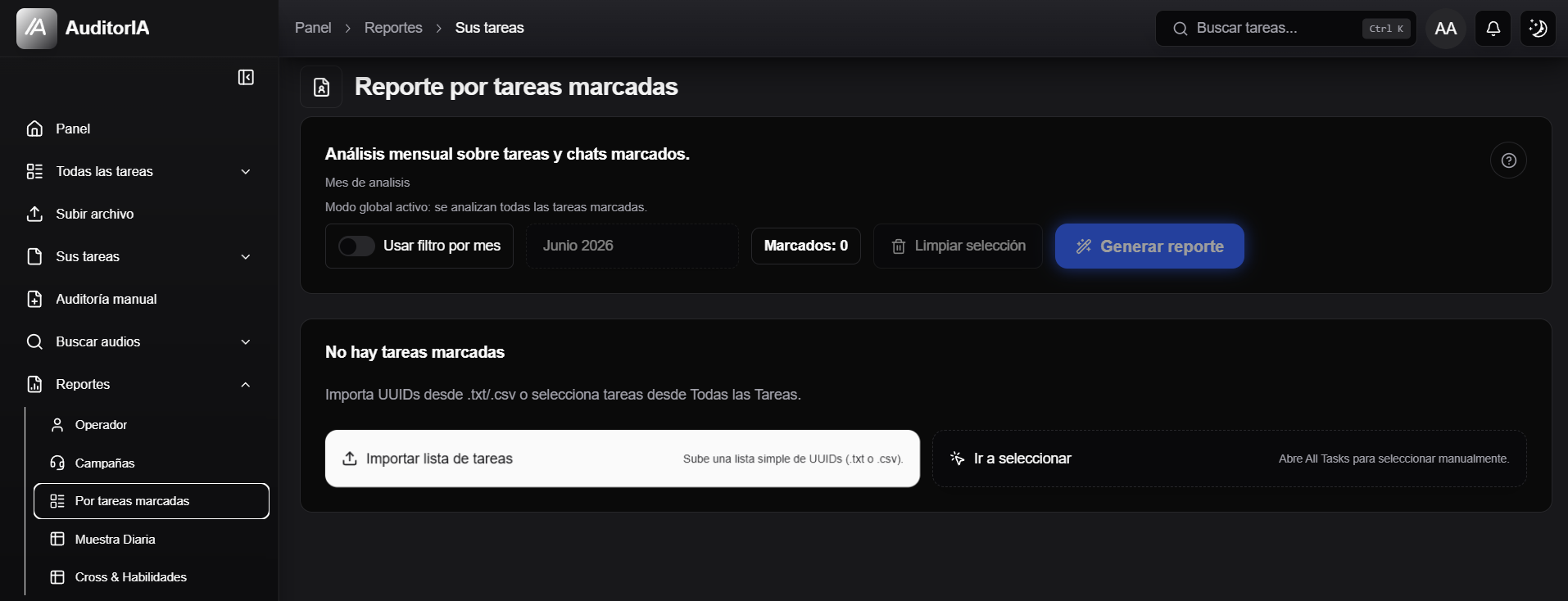
If no cases are marked, AuditorIA shows an empty state. From there you can import UUIDs from .txt or .csv, or go select cases manually.
Review the preview
When there are marked cases, the screen shows the counter, month filter, clear action, generate button, preview table, and remove actions.
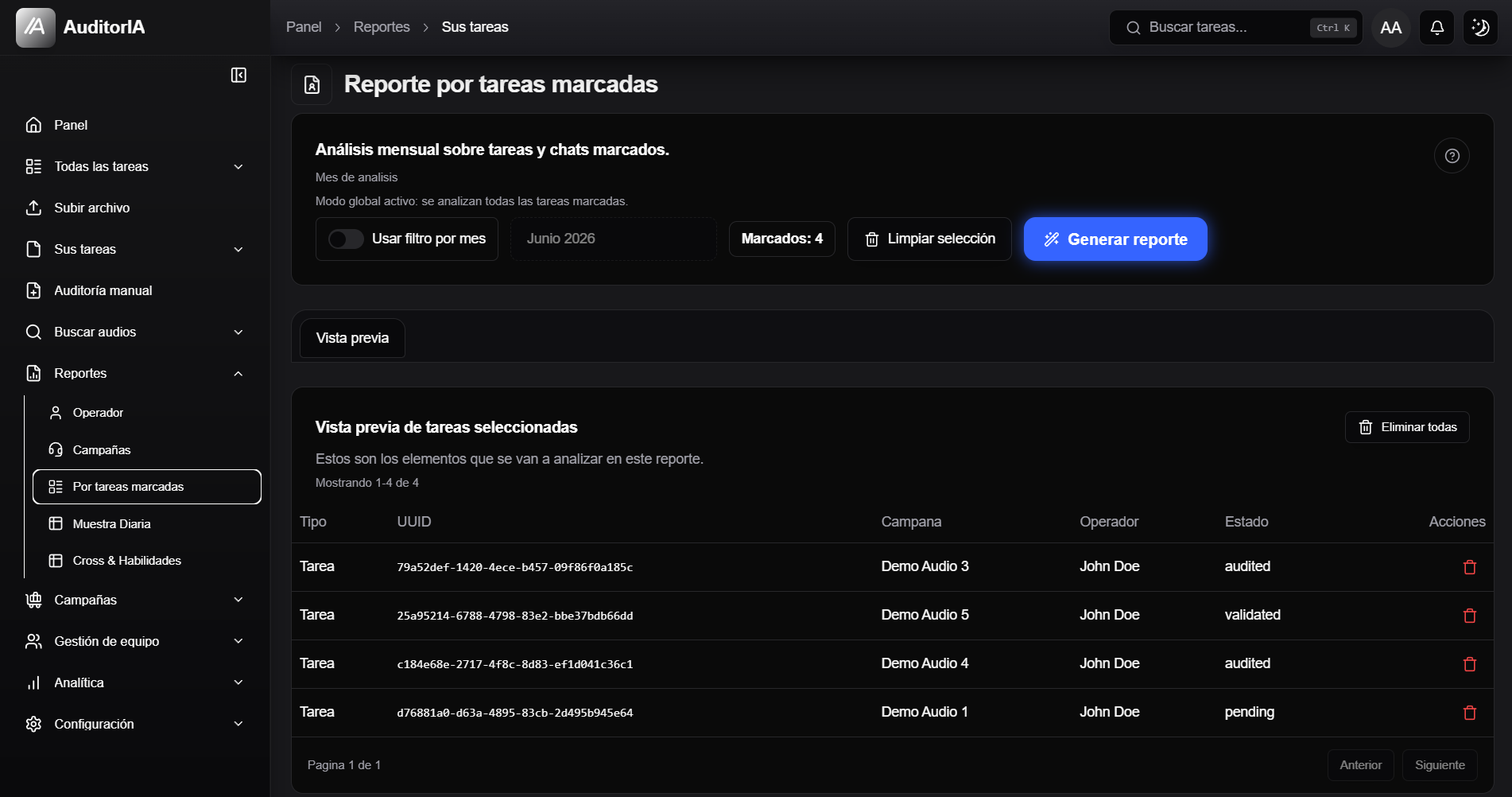
If Use month filter is enabled, the report only analyzes marked cases from that month. If it is disabled, the full selection is analyzed.
Import UUIDs
Use import when your team already has an external list of cases. The file can be .txt or .csv and may contain UUIDs separated by lines, commas, semicolons, tabs, or spaces.
Generate the report
Click Generate report when the preview is ready.
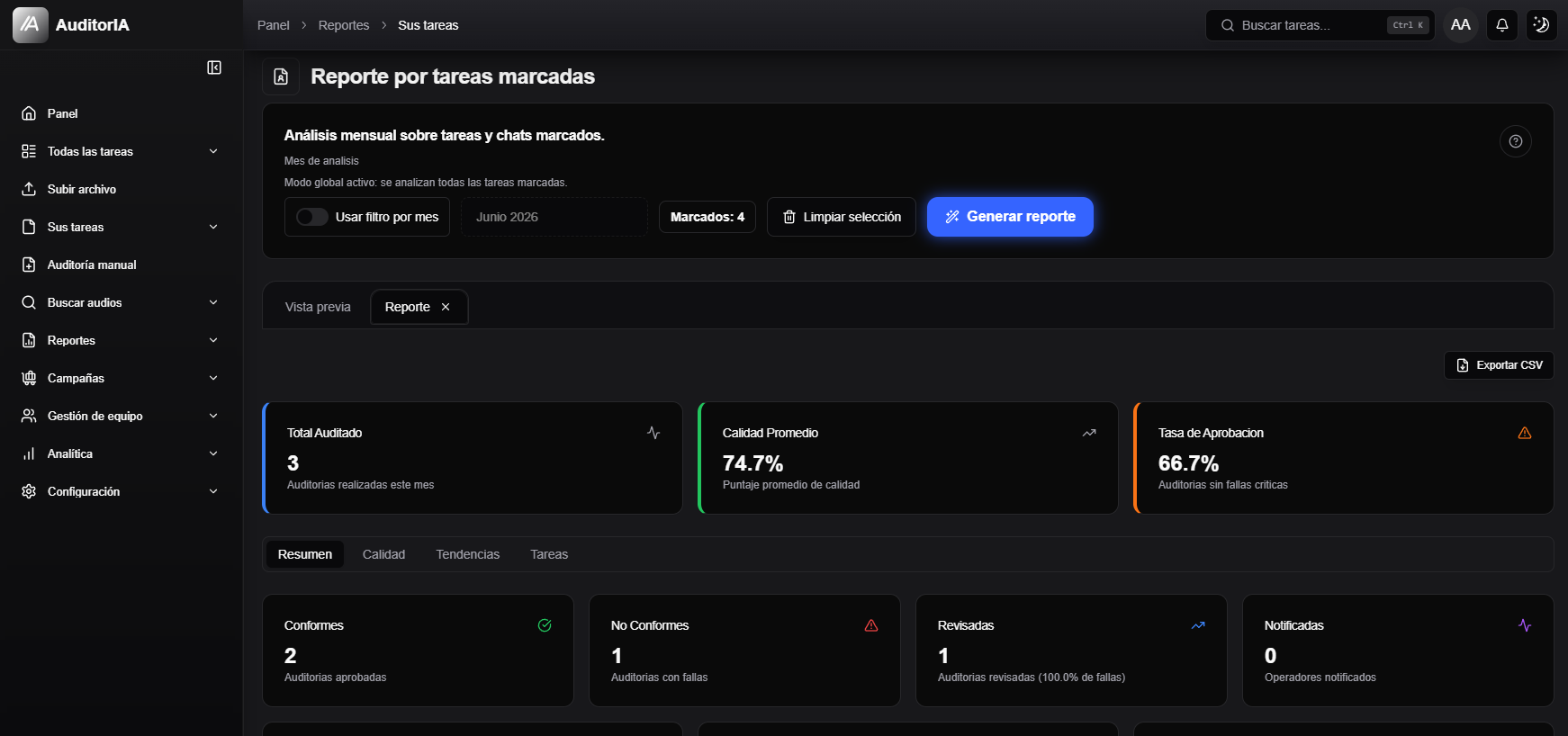
The report uses the same main areas as monthly reports.
Summary
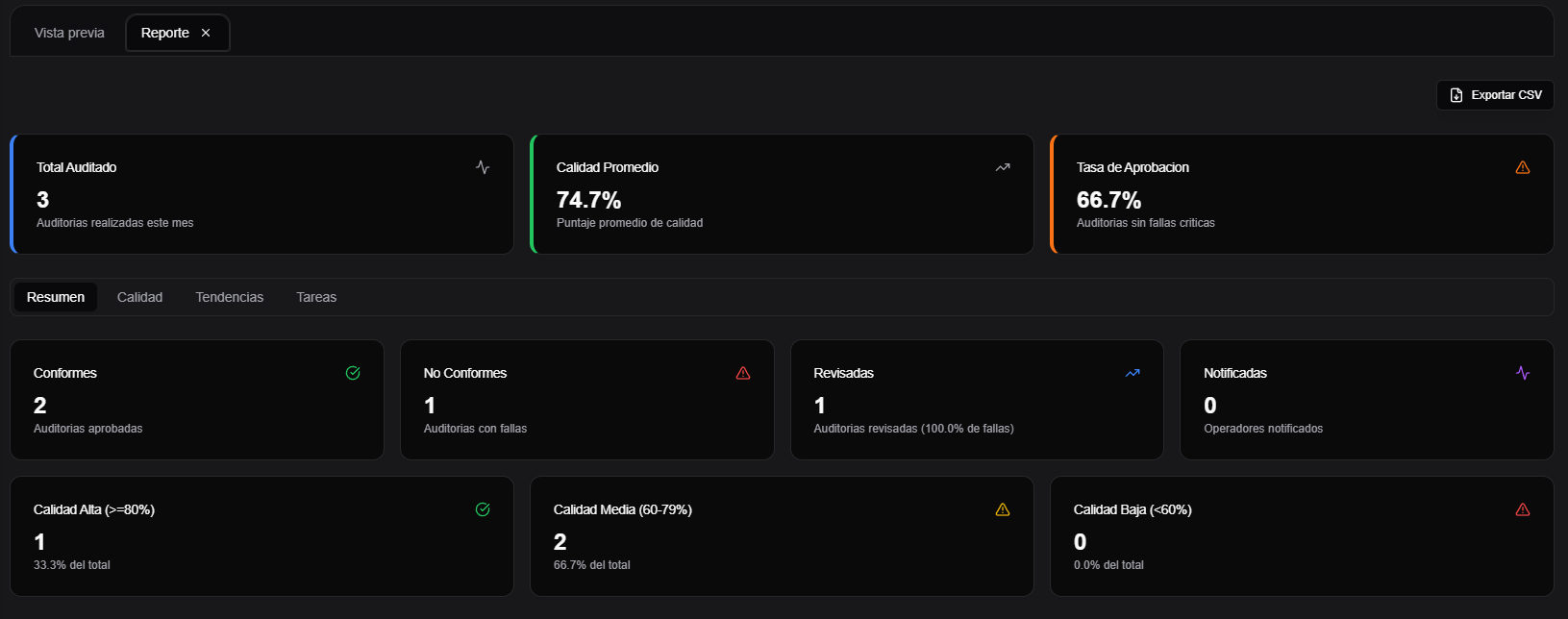
The Summary tab shows total audited, average quality, approval rate, and main counters for the marked sample.
Quality
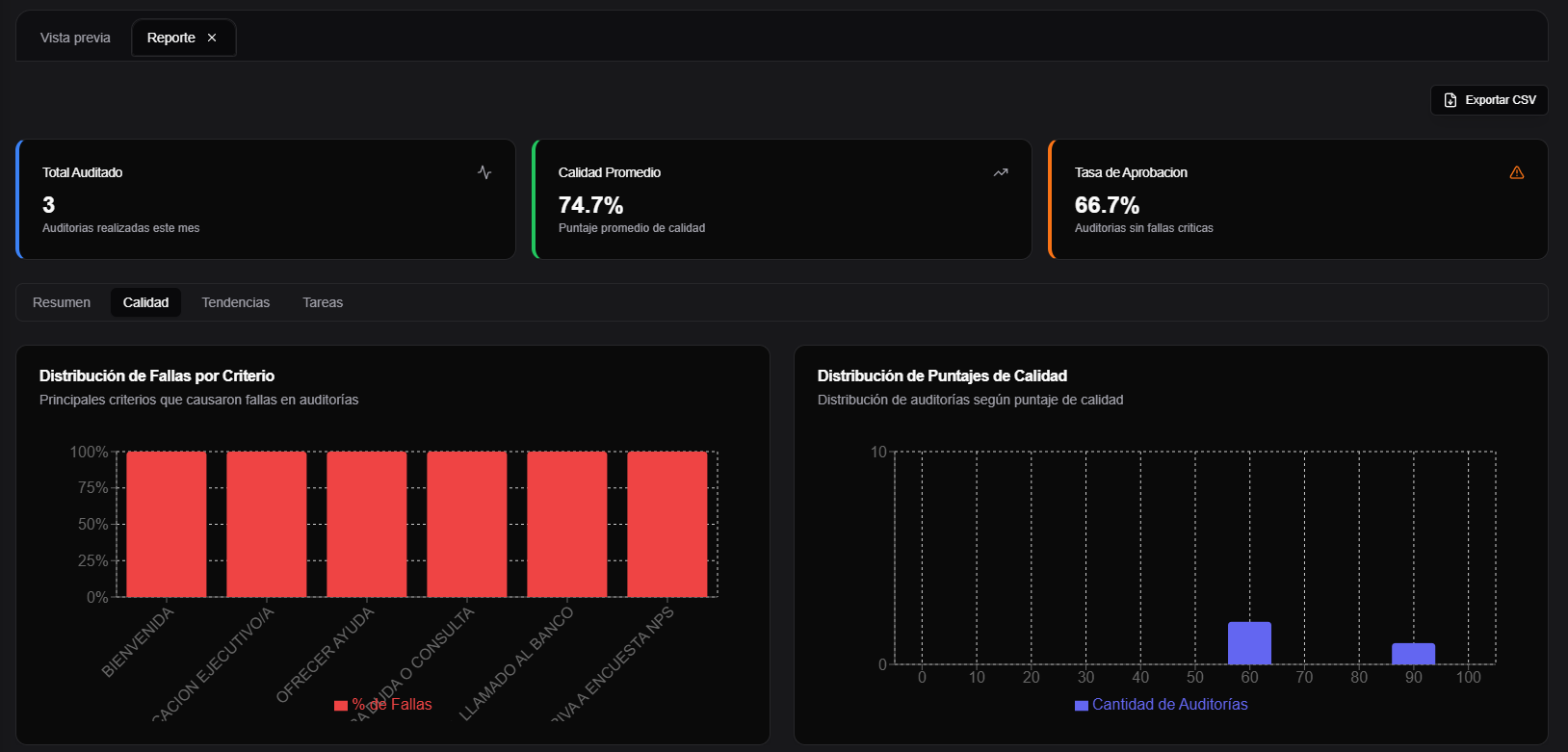
The Quality tab shows distributions, criteria, or categories that explain the result.
Trends
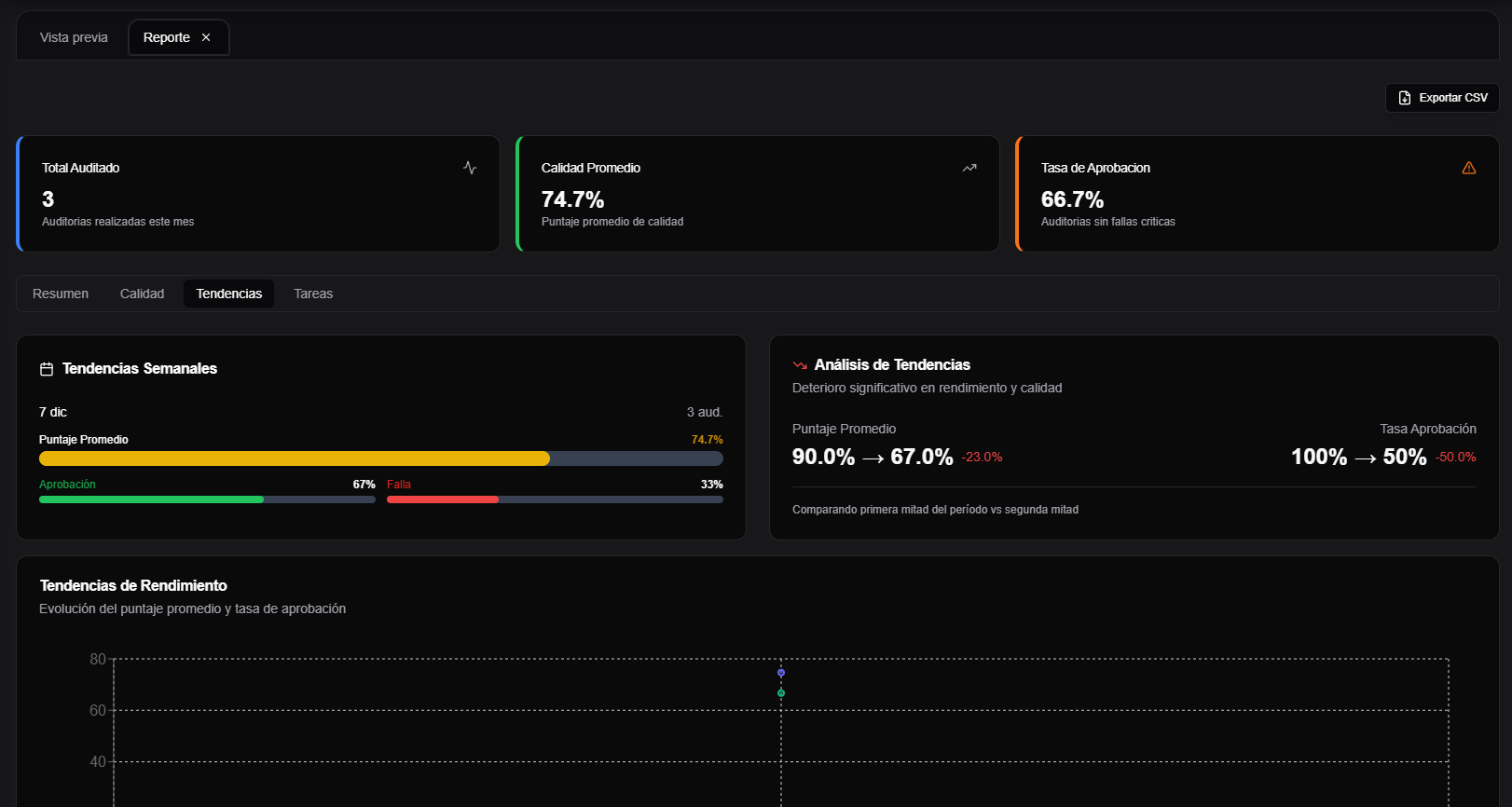
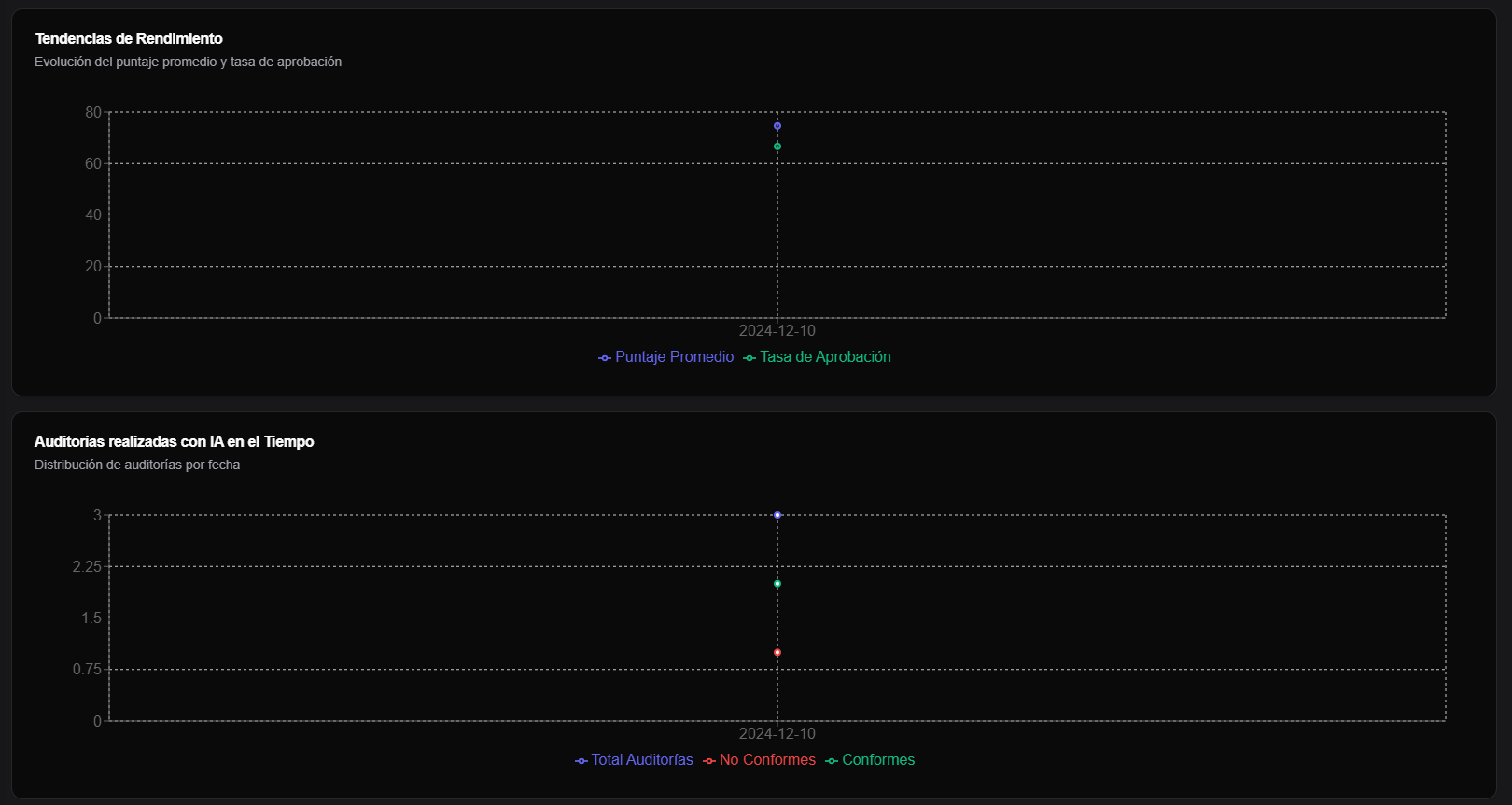
The Trends tab shows evolution within the selection when there are enough dates to chart changes.
Tasks
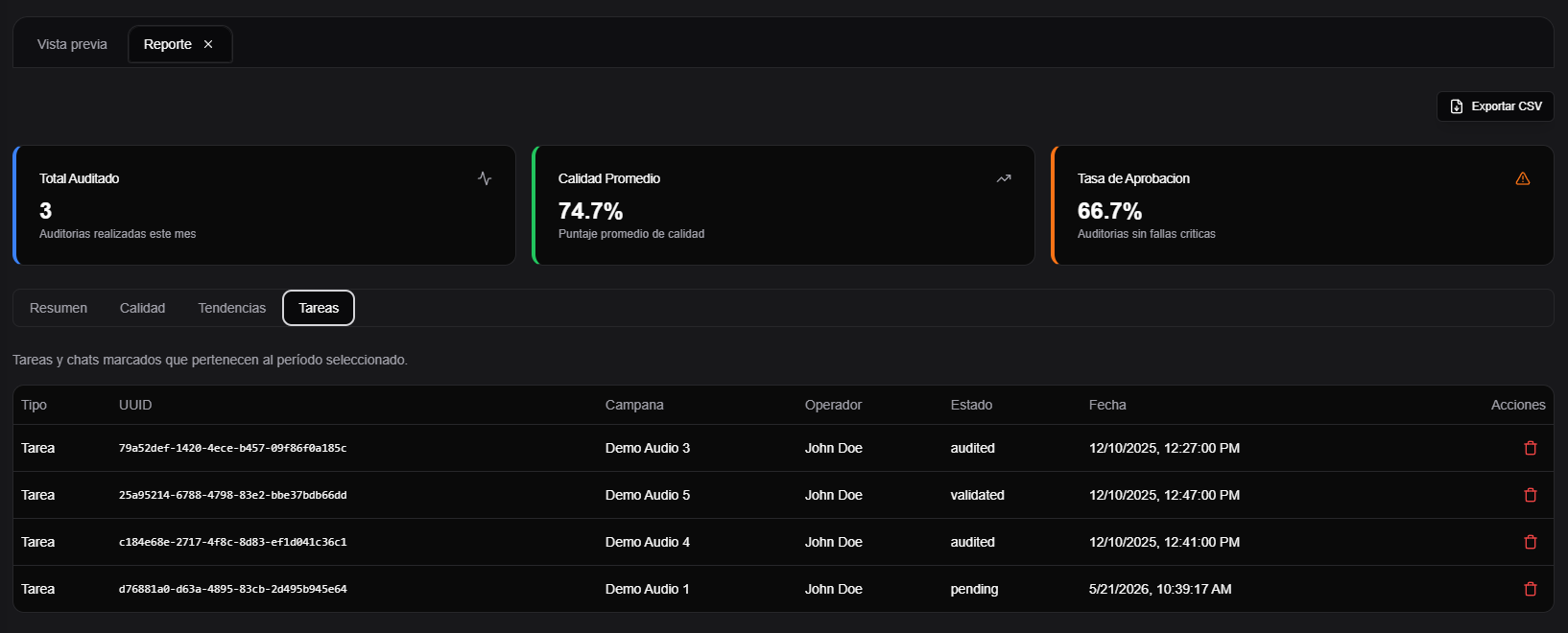
The Tasks tab lists the concrete cases included in the report, so you can return to individual evidence.
Export results
When the report is generated, Export CSV may appear. The exported file respects the analyzed selection and month filter.