Upload audio
Uploading an audio file is the first step of any audit in AuditorIA. This guide walks through the form field by field, when to use each option, and how to interpret the system response.
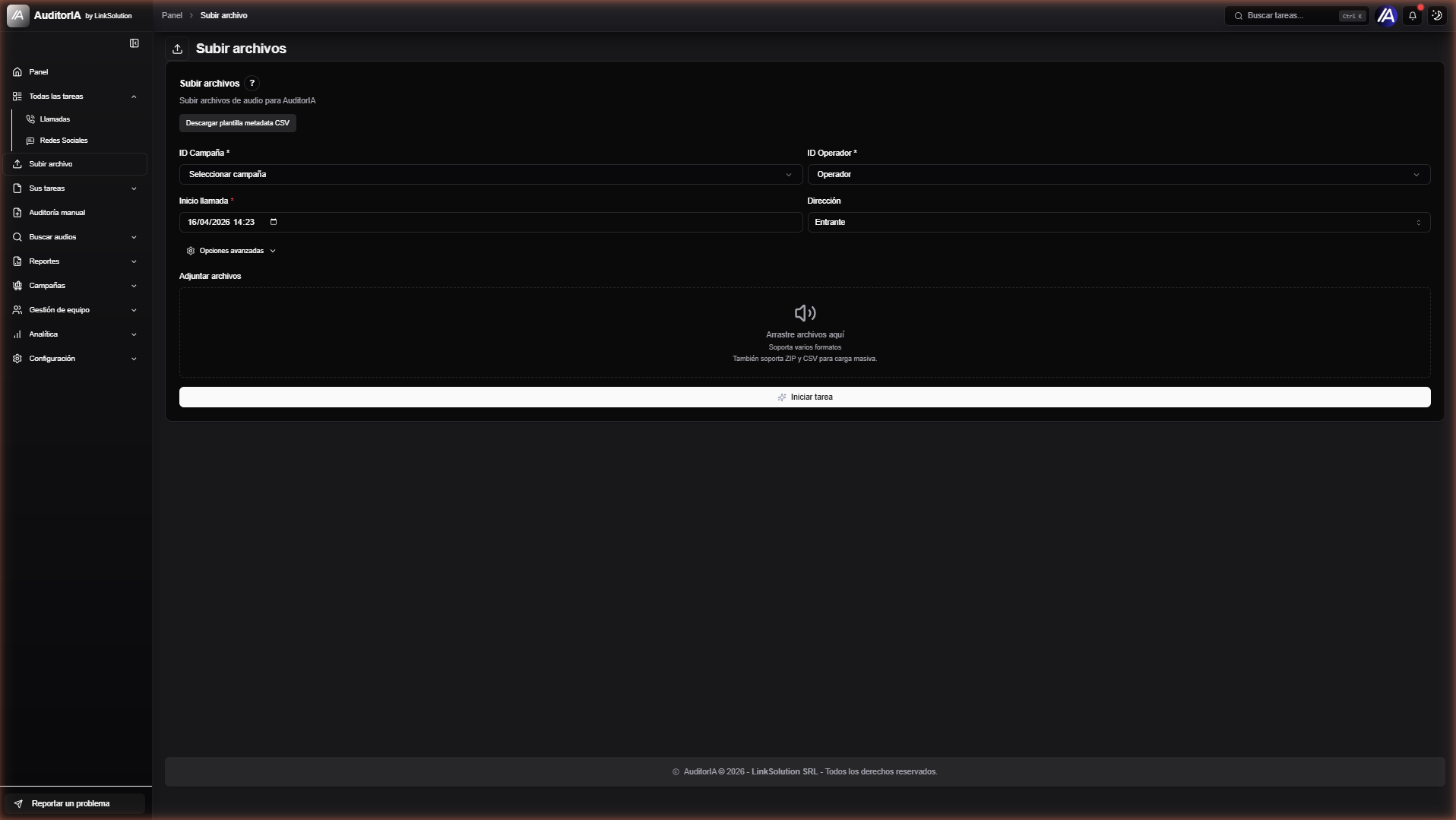
Reaching the form
Three equivalent entry points:
- Upload file item in the sidebar.
- Direct route
/subir-archivo. - Key
Nfrom any screen (if the shortcut is enabled in your tenant).
Transcription engine, language, and device are resolved automatically from the AI settings of the selected campaign (step 7 of the campaign wizard).
Form fields
Campaign ID *
Required selector with the campaigns available to your user. The campaign defines:
- The applicable audit sheet template (wizard step 4).
- Alert criteria (step 5).
- Automatic processes to trigger on completion (step 6).
- AI routing per functionality (step 7): transcription model, tag generation, speaker analysis, etc.
Visible campaigns
The list is filtered by permissions. If you don't see the expected campaign, ask your admin to grant the relevant path from Team management > Roles and Permissions.
Operator ID *
Required selector for the operator linked to the audio. If your user has a personal operator_id, it comes pre-selected; otherwise you pick from the campaign's operator list. Determines which representative the call is imputed to for ranking, Daily Sample reports, and Cross & Skills.
Call start *
Start date and time of the actual call (not the upload time). Format DD/MM/YYYY HH:MM. If unknown, leave the default (current date/time).
Why it matters
Dashboard date ranges and reports use this timestamp as their axis. A mis-entered date drops the call out of reporting windows.
Direction
| Value | When to use |
|---|---|
| Inbound | The customer initiates the call into the contact center |
| Outbound | The agent dials the customer (sales, collections, reminders) |
Direction influences diarization (which speaker is typically agent vs customer) and some sheet criteria.
Advanced options
Collapsible toggle with parameters that are only needed when overriding the campaign defaults:
| Field | Use |
|---|---|
| Language | es · en · pt · auto. Default = campaign setting. |
| Transcription model | WhisperX / OpenAI Whisper API / Deepgram |
| Device | CPU / CUDA (only for WhisperX) |
| Notes | Free text attached to the task |
| Whisper params | beam_size, vad_filter, compute_type (float16/int8) |
| Diarization threshold | Fine-tuning for the speaker splitter |
Leave Advanced options collapsed unless you have a concrete reason. The per-campaign configuration is already optimized by the admin for that use case.
Attach files
Drag-and-drop area with the caption "Drop files here — Multiple formats supported. Also supports ZIP and CSV for bulk upload."
Individual files
| Format | Extension | Note |
|---|---|---|
| WAV | .wav, .x-wav | Uncompressed, maximum quality |
| MP3 | .mp3 | Most common in contact centers |
| MPEG | .mpeg | MP3 variant |
| AAC | .aac | Modern compression, common on mobile |
| OGG | .ogg | Free format |
| WebM | .webm | Web captures, browser recordings |
| FLAC | .flac, .x-flac | Lossless compression |
Bulk upload via ZIP
- Zip a batch of audios into a single
.zipand drop it on the zone. - The backend unpacks it, creates one task per valid audio, and applies the same Campaign / Operator / Direction values to all of them.
- Corrupt files inside the ZIP are skipped and listed in the final notification.
Bulk upload via CSV + audios
- Button Download metadata CSV template (above the form) generates a
metadata.csvwith the expected columns:filename·campaign_id·operator_id·start_datetime·direction·notes
- Build a
.zipcontaining the audio files + themetadata.csvat the root. - Each CSV row overrides the global form values for that file.
Default limits
- Maximum size: 500 MB per individual file or ZIP.
- Maximum recommended duration: 120 minutes per audio.
- Larger files must be split, or contact the admin to raise the tenant limit.
Submitting
- Verify required fields (Campaign ID, Operator ID, Call start, at least one file).
- Click Start task.
- The backend returns one
task_id(UUID) per file and enqueues tasks in Redis. - The UI redirects to All tasks with the tasks in Pending state.
Example response
{
  "task_id": "a1b2c3d4-e5f6-7890-abcd-ef1234567890",
  "status": "pending",
  "created_at": "2026-04-16T14:23:00-03:00",
  "campaign_id": 12,
  "operator_id": 2608,
  "direction": "inbound",
  "language": "es",
  "engine": "whisperx",
  "device": "cuda"
}
What happens next (pipeline)
Stages and indicative times
| Stage | Typical duration (30 min of audio) |
|---|---|
| Upload to backend | 5-15 s (network dependent) |
| Queueing | <100 ms |
| Transcription with WhisperX GPU | 1-2 min |
| Transcription with OpenAI/Deepgram | 30-60 s |
| Diarization | 30-60 s (included in WhisperX) |
| GPT analysis (tags + sentiment) | 10-30 s |
| End-to-end total | ~2-5 min on GPU; 3-8 min on CPU |
Bulk upload (4 paths)
- Multiple selection on the drop zone — each file creates its own task with the same parameters.
- ZIP — same as 1 but packaged.
- ZIP + metadata.csv — each task picks specific values from a CSV row.
- Automatic integrations:
- Net2Phone — webhook that creates tasks on call end.
- Anura — webhook for cloud telephony recordings.
- SFTP — worker that syncs a remote folder.
- External API —
POST /api/v1/transcribewith API Key, for custom systems.
Configure automatic sources from step 2 of the campaign wizard: Audio Sources.
Bulk uploads with large files can saturate the queue. Prefer off-peak hours or use integrations to spread the load.
Troubleshooting
| Symptom | Diagnosis | Action |
|---|---|---|
| "File too large" | Exceeds 500 MB | Split the file (ffmpeg) or ask admin to raise the limit |
| "Unsupported format" | Extension not listed | Convert to WAV: ffmpeg -i input.xxx output.wav |
| "No permission for campaign" | Your role lacks the campaign path | Request access via admin in Team management |
| Task stays Pending >10 min | No active workers or saturated queue | Notify admin; check logs in Settings > Logs |
| Task turns Error immediately | Corrupt audio or 0 duration | Verify the file locally with VLC or Audacity |
| Diarization mixes speakers | Mono channel with heavily overlapping parties | Try stereo transcription (see Stereo guide) |
| Transcription with hallucinations | Very noisy audio or long silences | Enable vad_filter in Advanced options |
| ZIP with CSV ignores rows | metadata.csv not at the ZIP root | Make sure metadata.csv is at the top level of the ZIP |
Next steps
- Transcription viewer — to review the result.
- Search and filter tasks — to find your audios.
- Worker selection — technical guide comparing engines.
- Stereo transcription — for audios with separate channels.