First sign-in
This guide explains how to activate your account and sign in for the first time. The path depends on how access was granted: an account may have been created for you, or you may have received an invitation link.
Before you begin
You need:
- your organization's AuditorIA URL;
- the username and password for an existing account, or a valid invitation link;
- an up-to-date browser and an internet connection.
The sections you see after signing in depend on the roles, permissions, and campaigns assigned to your account. Not every user sees the same menu or lands on the same initial screen. See I cannot see an option the manual mentions.
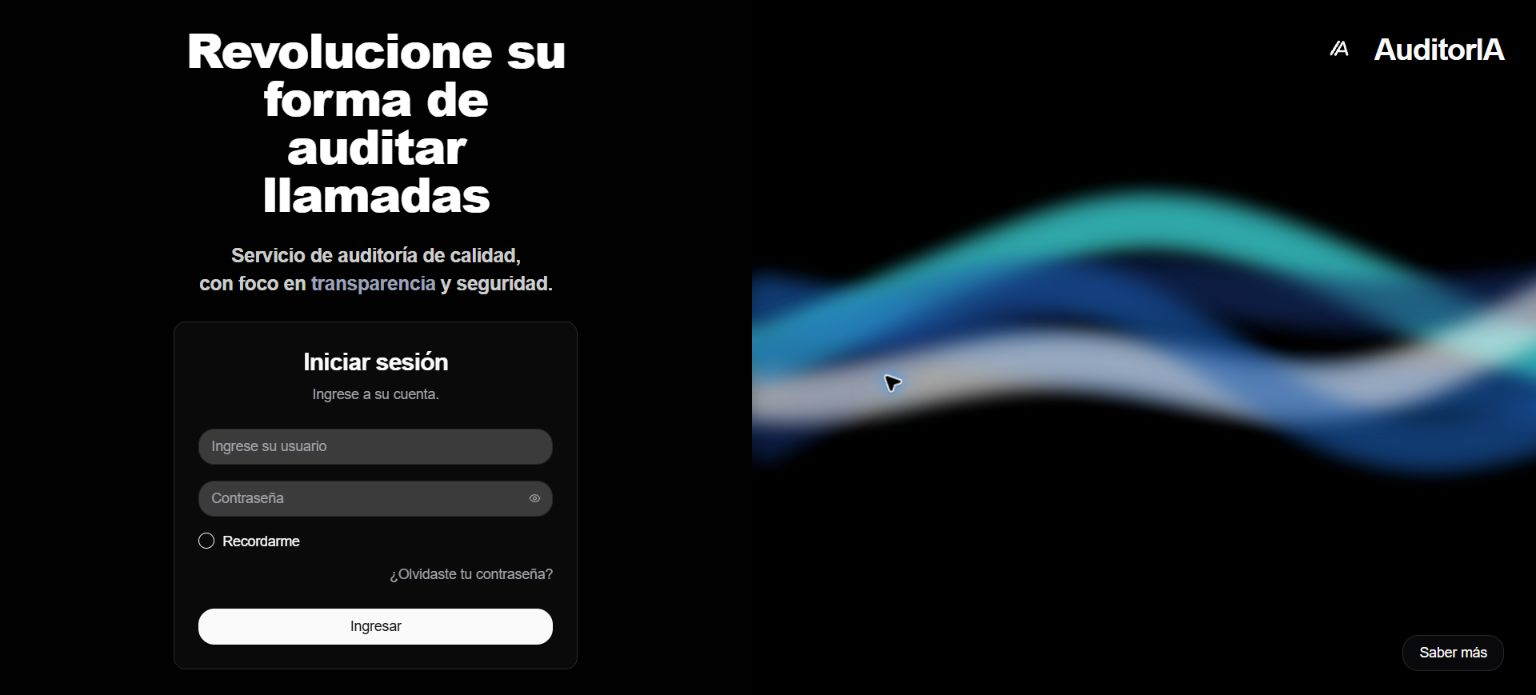
If an account was created for you
- Open the AuditorIA URL.
- Enter the username provided for your account.
- Enter your password.
- Select Remember me only on a personal or trusted device.
- Select Sign in.
If you received an invitation link
The link lets you create your own account:
- Open the link before it expires.
- Confirm the email associated with the invitation.
- Choose your username and password.
- Complete registration.
- Sign in with the credentials you just created.
The link can be used only once. If it expired, was already used, or does not match your email, ask the person who manages access for a new invitation.
Registration confirms your account, but it does not automatically assign a role. Until someone grants access, AuditorIA may show a pending approval screen instead of the Dashboard. See I cannot see an option the manual mentions.
If your access is pending
An account with pending access already exists and can authenticate, but it does not have operational permissions yet.
Do not register again or create another account. Ask the person who manages access to review:
- the assigned role;
- the campaigns you need;
- the operator ID, only when you need to identify your own cases or represent an auditable person.
After access is assigned, refresh the page or sign in again.
Additional verification
Some installations may request a multifactor authentication code after validating your username and password. Enter the code from your authenticator app to complete sign-in.
If you lost the device or cannot generate a code, contact the person who manages your account. Never share authentication codes or screenshots containing them.
Recover your password
If you do not remember your password:
- On the sign-in screen, select Forgot your password?
- Enter the email associated with your account.
- Check your email and open the link.
- Set a new password.
- Return to sign-in.
The recovery link expires and can be used only once. If the message does not arrive, check your spam folder and confirm that your account email is correct with the person who manages access.
After signing in
With access enabled, AuditorIA shows the sections allowed for your account. Depending on your configuration, you may find:
- tasks, calls, or chats;
- audits and feedback;
- reports;
- quality configuration;
- team and access management.
If you expected an option and it is missing, do not assume the feature does not exist. First confirm that your account has the required role, action, and campaign scope.
Common problems
| Situation | What to check |
|---|---|
| Invalid credentials | Confirm your username and password. If you do not remember it, use email recovery. |
| Invalid invitation link | Request a new invitation; do not try to reuse the link. |
| Access pending | The account exists, but it still needs a role with permissions. |
| A section is missing | Review the assigned role, permissions, and campaigns. |
| You cannot complete MFA | Contact the person who manages your account to recover the second factor. |
| The page does not load | Confirm the URL and connection before escalating the problem. |