Transcription viewer
The transcription viewer is the screen where you review a processed call. It brings together the original audio, the transcription, the task's operational data and, when applicable, the quality audit block.
Use it as an evidence screen: first confirm that the case, agent and campaign are correct; then review the conversation and the audit with the same context.
Opening the viewer
You can open the viewer from several places:
- the top task search bar;
- All tasks, to search, filter and open call or chat tasks;
- Your tasks, if your user works with an own queue;
- Search audios, when the audio already has an associated task;
- any report table that allows opening the case.
If you haven't found the task yet, start with Search and work with tasks.
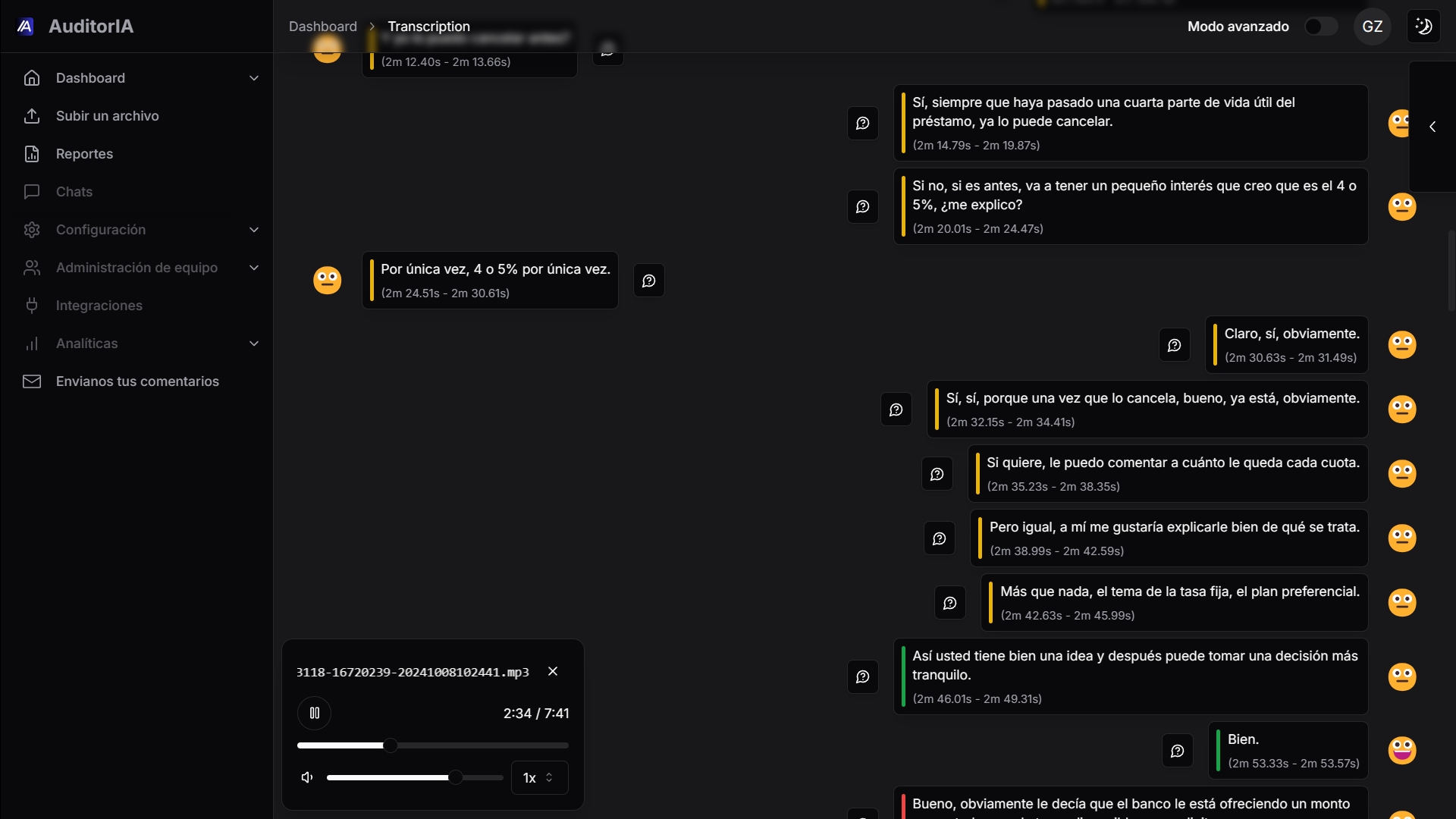
What the screen shows
The exact layout can vary by permissions, task status and campaign configuration, but you'll normally find:
| Zone | Purpose |
|---|---|
| Header and call data | Confirms UUID, file, campaign, agent, date, direction, phone and client document when available. |
| Player | Lets you listen to the audio and jump to specific moments. |
| Transcription | Shows segments, speakers, text and timestamps. |
| Tags and analysis | Shows labels, summary, speakers, emotions or AI-generated data when they exist. |
| Quality audit | Lets you get, review, correct, validate, invalidate or regenerate the audit if your role allows it. |
Not every task has an audit. A task can be transcribed and not yet have an audit generated, or it can lack a campaign, agent or quality scorecard; check the campaign settings and the quality scorecard.
Export the task to PDF
When a call task is open and its transcription has loaded, select Exportar PDF in the screen's action row. AuditorIA prepares the file and downloads it through your browser.
The PDF normally includes:
- the task identifier, campaign, and export date;
- file and call data;
- available tags;
- the segmented transcription, including speakers and timestamps;
- conversation analysis when available;
- the audit result, criteria, and validation status, if the audit was already saved and can be retrieved.
The audio itself is not embedded. The PDF includes a link back to the task in AuditorIA, where you can listen to it and perform editing or validation actions.
:::note Exporting does not audit or modify the task If the task does not have an audit yet, the PDF is still downloaded, with a notice in place of that section. Exportar PDF does not generate a new audit.
If an audit exists but cannot be retrieved, for example because of a network or permission issue, the download also continues and the document indicates that the audit information was unavailable. :::
The filename normally combines the campaign, audio filename, and export date. If those values are unavailable, AuditorIA uses the task identifier.
This action is currently available in the call task viewer. The chat detail view does not offer this export. If the button is missing from a call, confirm that the task and its transcription have finished loading.
Call data
Before reviewing content, verify the case data:
- campaign;
- agent;
- start date and time;
- call direction;
- audio file;
- phone or external identifier, if any;
- client document type and number, if loaded via CSV, naming convention, integration or manual edit.
If any of these is wrong, it can affect searches, reports, assignments and audits. Some fields can be edited from the viewer only if your user has permission. See I cannot see an option the manual mentions.
Audio and transcription
The transcription is split into segments. Each segment can include:
| Element | Description |
|---|---|
| Speaker | Identifier detected by diarization, e.g. Speaker 0 or Speaker 1. |
| Timestamp | Start and end of the fragment within the audio. |
| Text | Transcribed content. |
| Indicators | Sentiment, silence, emotion or other metadata when available. |
Click a timestamp or use the player controls to listen to the matching stretch. If audio and transcription don't match, use the audio as the primary evidence.
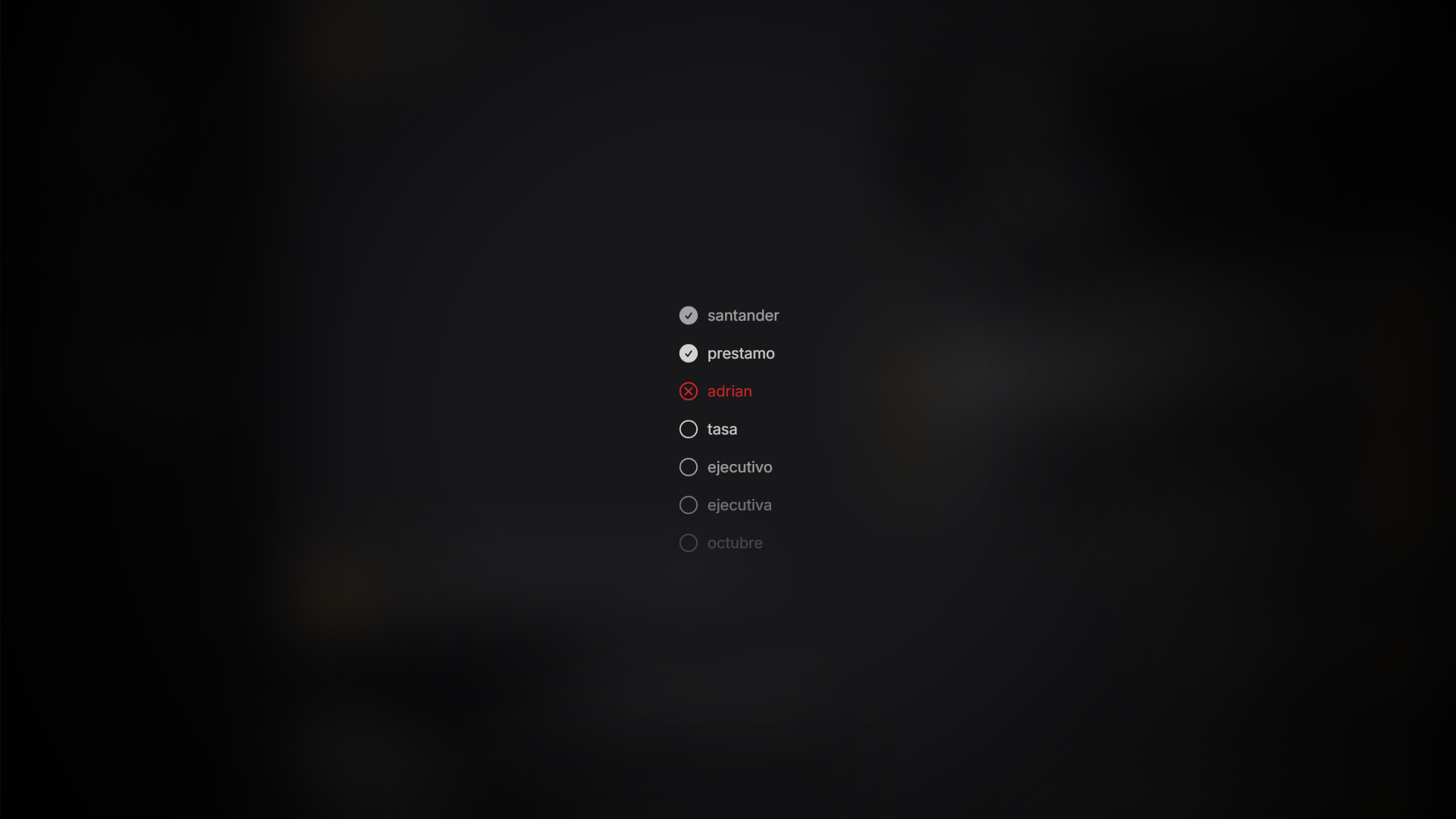
Search inside the transcription
When the call is long, use word search to quickly locate terms, phrases, names, products or doubtful parts of the conversation.
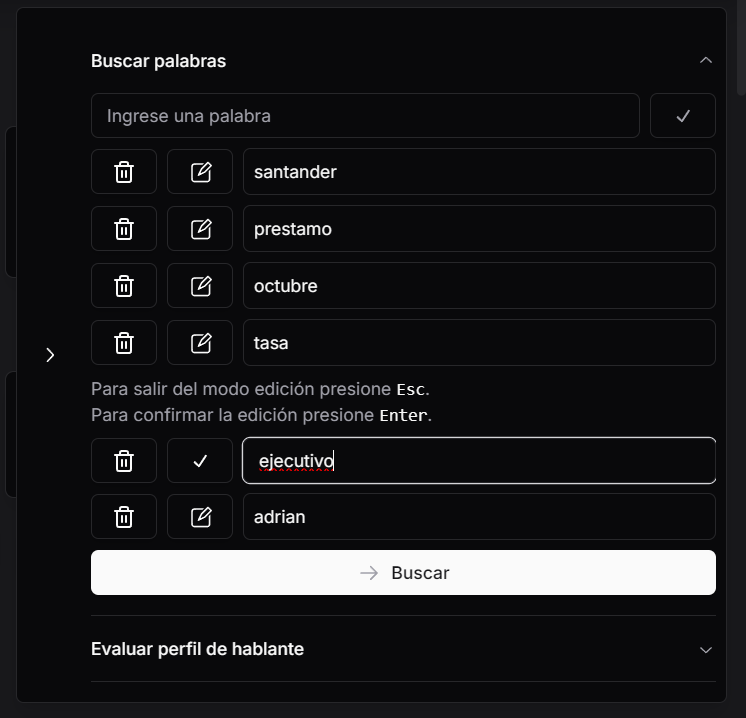
Search helps review specific criteria, but it doesn't replace listening to the context when an answer seems ambiguous.
Tags
The Tags section shows the call's labels, generated by the AI or added manually. Depending on your role you can:
- edit the tags: use Editar tags, add or remove labels, and save the changes;
- regenerate them with the Regenerate tags button if the AI result doesn't convince you. Some roles have limited regenerations.
Tags feed list filters and reports: keeping them accurate improves everyone's searches.
Speakers, analysis and AI chat
AuditorIA can show speaker information and conversation analysis. This data depends on the processing engine, audio quality and campaign configuration.
The floating Show Dashboard button (right side of the screen) opens a panel with:
- an AI chat about the call, to ask about that specific conversation;
- word search;
- the speaker profile and its evaluation;
- advanced information, with the model, language and parameters used to process the audio.
If the task doesn't have sentiment analysis yet, a notice with an Analyze sentiment button appears above the conversation: the analysis runs right away and the result shows as soon as it finishes. It only analyzes what is missing, it does not redo what is already analyzed. The same notice and button are in the chat viewer. For tasks sent to Spam, the dashboard and chat are disabled.
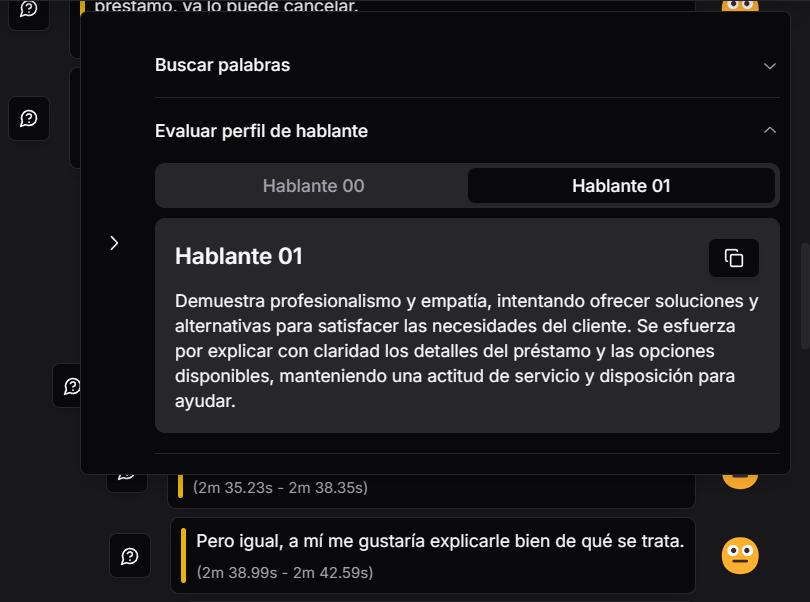
Treat them as operational support. If the analysis and the audio disagree, prioritize the call's evidence.
Quality audit
The audit block shows the result calculated with the campaign's quality scorecard. From there you connect to the full review flow:
- get or open the audit;
- read status, score, compliance and critical errors;
- review passed, failed and not-counted criteria;
- correct criteria if your role allows it;
- add extra notes;
- validate or invalidate the audit;
- regenerate the audit when the active scorecard version should be used.
For the audit step-by-step, continue in Review a call audit.
Scorecard version used
Audits stay linked to the scorecard version in force when they were generated. That's why the viewer can show:
| Field | Meaning |
|---|---|
| Audited version | Scorecard version used to calculate that audit. |
| Active version | Current version configured for new audits in the campaign. |
| Version notice | Indicates the audit was generated with an old or unknown version. |
If the audited and active versions differ, AuditorIA may block direct editing to avoid mixing historical criteria with current ones. In that case, with permission, you can regenerate the audit with the active version.
Audit KPI cards
The audit summary can show cards such as status, score, compliance, critical errors, cross compliance or generated alerts. Card visibility and order are configurable per campaign from Campaign settings.
Not all campaigns show the same cards. If an expected card is missing, check the campaign's personalization settings and your user's permissions.
Editing and permissions
Depending on role, task status and scorecard version, the following may be allowed: For audits, Edit and Regenerate audit both require that it is not validated; Edit also requires the audited version to match the active one.
- editing transcription text;
- editing call data;
- correcting an audit criterion;
- marking a criterion as not counted;
- validating or invalidating an audit;
- regenerating the audit;
- pinning or unpinning the case for reports;
- sending to Spam a task in Completed or Analyzed state, or reactivating it if it is in Spam.
Edit requires permission to edit the transcription or its tags; Regenerate tags requires tag regeneration permission.
Editing transcription, criteria or call data can affect reports and later reviews. Don't change anything unless you're correcting a verified fact.
If something is missing
Check these common causes:
- your role lacks permission for that action — see I cannot see an option the manual mentions;
- the task is still pending or processing;
- the task has no campaign, agent or scorecard;
- the audit is already validated;
- the audit uses a version different from the active one;
- the campaign doesn't have the expected KPI cards or alerts configured;
- the case is manual and has no audio/transcription;
- the data depends on an integration or metadata that wasn't loaded.