Search and work with tasks
This guide explains how to find tasks, open cases, and work with AuditorIA task lists. A task can be a call or a chat. An audio record may exist without a task yet, or it may already have an associated task ready to open.
If you already opened a call and want to review its audit, continue with Review a call audit. If you want to review a written conversation, continue with Review a chat audit. If the task does not exist yet, the audio may still need to be processed or uploaded.
Choose where to start
| Situation | Recommended path |
|---|---|
| You have a call ID or file name | Use Search calls from the header. |
| You want to review a call queue | Open All tasks and use search, filters, or row actions. |
| You want to open a social media chat | Go to Chats or social media. |
| You need a report with specific cases | Mark tasks from the list, then generate a Marked tasks report. |
| You have an uploaded audio and want to know if it already has a task | Use Search uploaded audio. |
| You marked a task to return later | Review Use pinned tasks. |
| You cannot find what you need | See If you cannot find the task or audio. |
The exact screen can vary depending on your permissions. If you do not see a section, filter, or action, it may not be enabled for your account.
Search calls from the header
At the top of the application, use Search tasks.... You can also open it with Ctrl K.

This search is useful when you already have a specific value, such as task ID, file name, campaign, or operator.
- Click Search tasks... or press Ctrl K.
- Type the value you have.
- Review the results.
- Select the task you want to open.
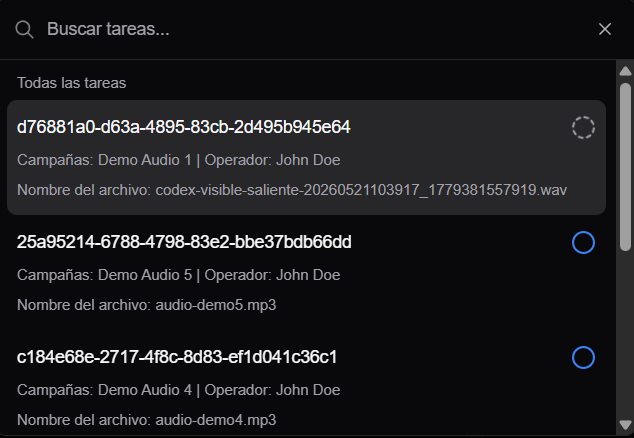
For controlled searches by campaign, status, date, or operator, use All tasks. For chats, open the Chats or Social media list.
Work from All tasks
Open All tasks from the sidebar. From there, you can work with calls or chats depending on the modules enabled in your installation.
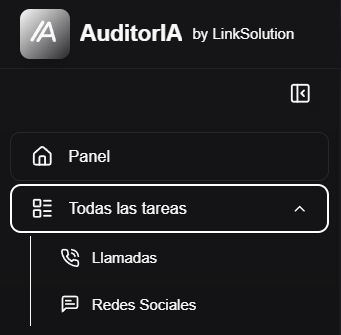
Calls
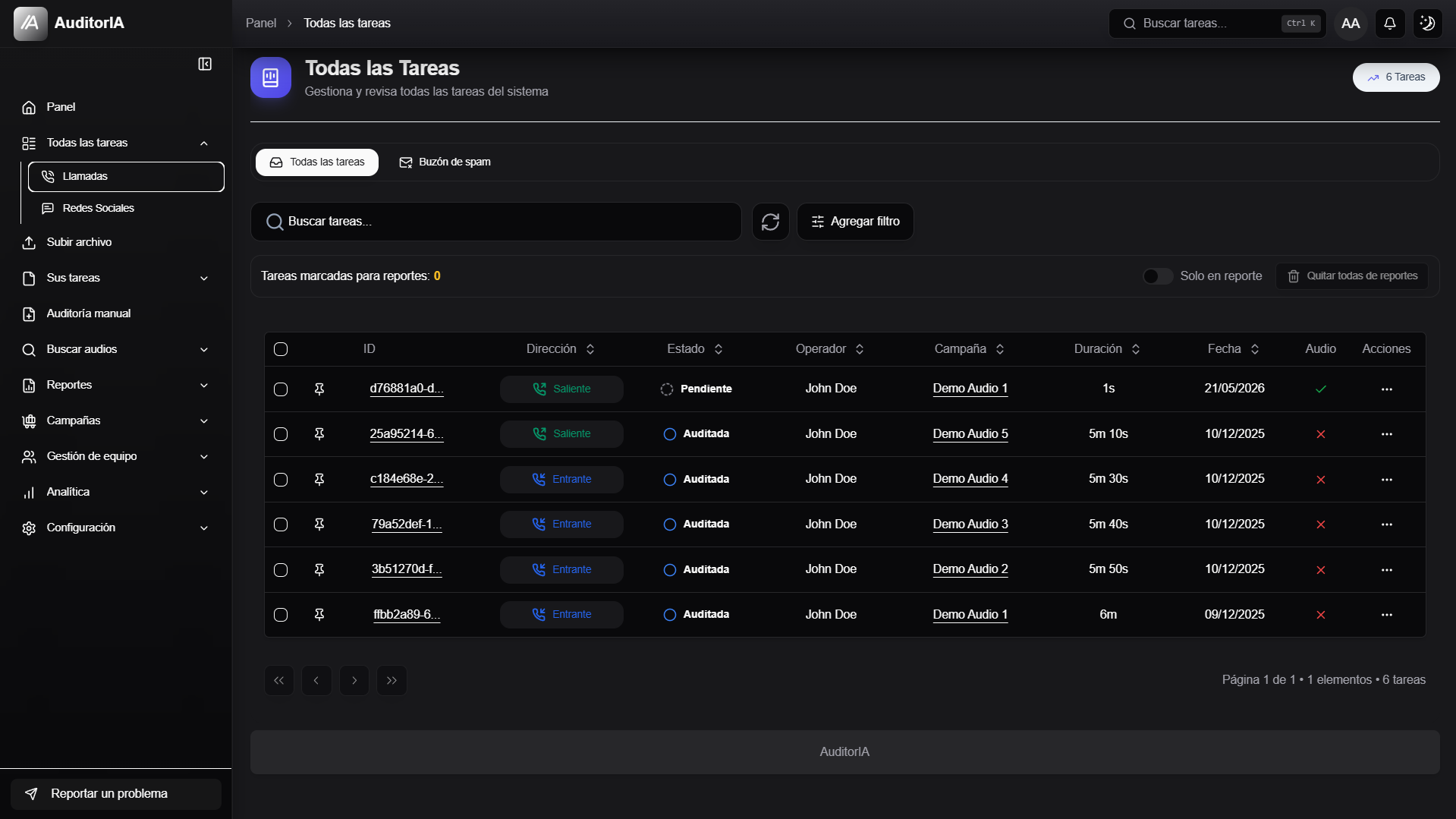
The calls list shows tasks associated with audio or calls already loaded in AuditorIA.
The list can include:
- search;
- filters;
- active filters;
- a marked-for-report counter;
- the Only in report switch;
- results table;
- row actions and bulk actions when you select rows.
Open a call
When you find the call you want to review:
- Click the task ID.
- Confirm that the opened screen matches the call you wanted.
The call opens in the transcription screen. From there you can listen to the audio, read the conversation, and review the audit.
Row actions
Each row can show quick actions, such as pinning a task, copying data, opening the case, or using the actions menu. Visible actions depend on task status and permissions.
Use row actions for one case. If you need to apply the same action to several cases, select rows and use the bulk actions bar.
Select tasks and use bulk actions
When you select one or more rows, AuditorIA shows a bulk actions bar.

Depending on the selected cases, actions may include:
| Action | What it does |
|---|---|
| Select all | Selects the visible or available results. |
| Send to audit | Sends eligible tasks to automated audit. |
| Generate tags | Generates tags when the configuration allows it. |
| Send to spam | Moves selected cases to spam. |
| Reactivate | Reactivates cases when their status allows it. |
| Mark for report | Adds selected cases to the persistent selection used by the marked tasks report. |
| Unmark from report | Removes selected cases from that selection. |
| Delete | Deletes selected cases if your user has permission. |
If the bar says some cases are not eligible, the action cannot be applied to all selected rows.
Mark cases for reports
Use Mark for report when you want to build a manual set of calls or chats to analyze later in Marked tasks report.
Recommended flow:
- Search or filter the cases you want to analyze.
- Select one or more rows.
- Use Mark for report.
- Repeat the process in other searches if needed.
- Open Reports > Marked tasks to review the preview and generate the report.
When a task is already marked, it can show an In report badge.

The marked-for-report counter helps you track the saved selection. Only in report filters the list to marked cases only. Remove all from reports clears the selection.
Chats or social media
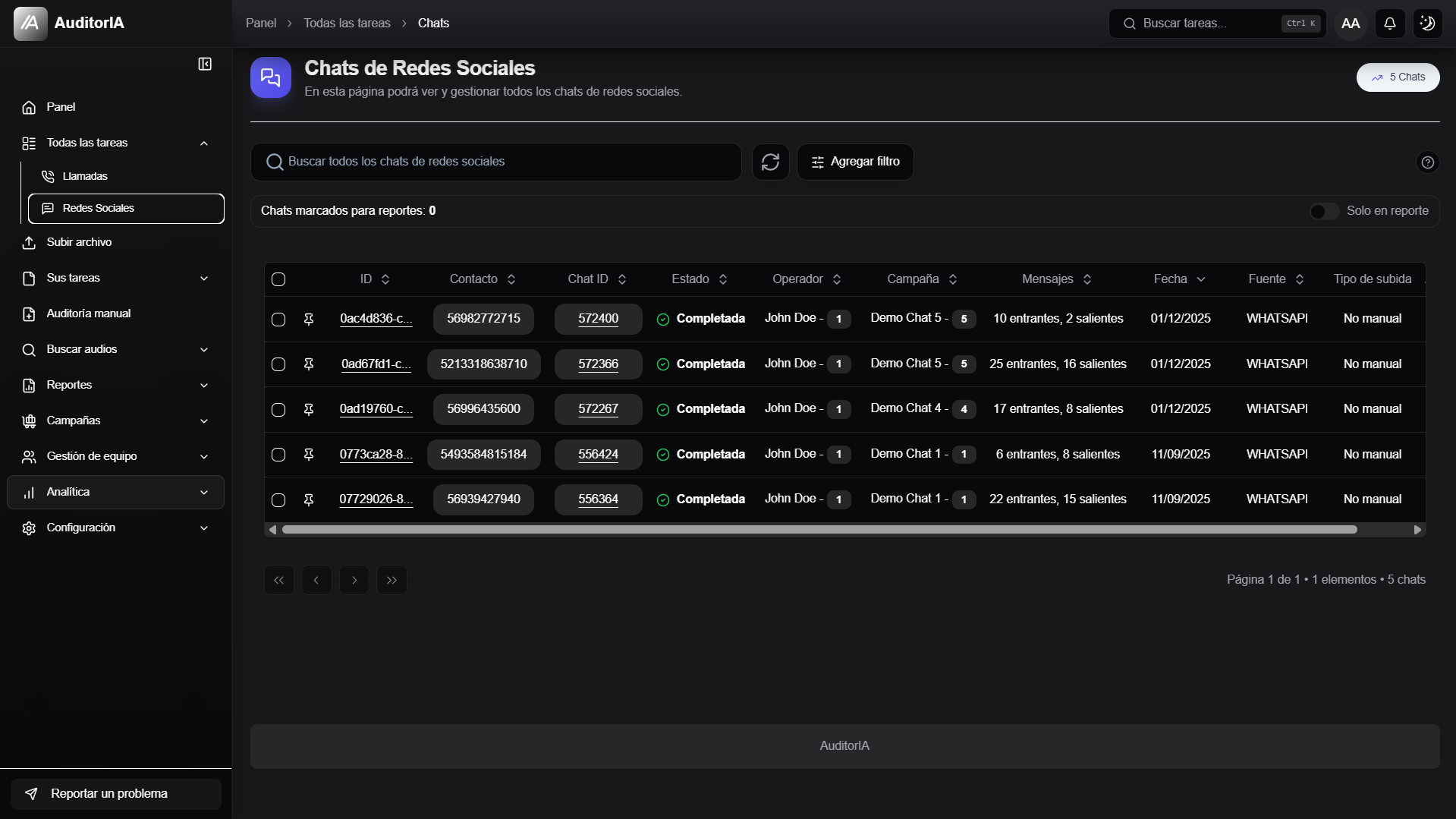
The chats list shows written conversations when that module is enabled. The flow is similar to calls, but fields change because these are conversations, not audio files.
You can search by UUID, conversation ID, campaign, operator, status, date, source, or contact.
Open a chat
Open the chat from the ID, conversation ID, or actions menu. The detail shows the conversation and the available review or audit actions.
Mark chats for reports
Chat lists can also show a marked counter, Only in report, and actions to mark or unmark for reports. Use them like calls when you want to combine calls and written conversations in the same marked tasks report.
Use filters
Filters reduce the list when there are many tasks. You can combine campaign, operator, status, date, and other filters.
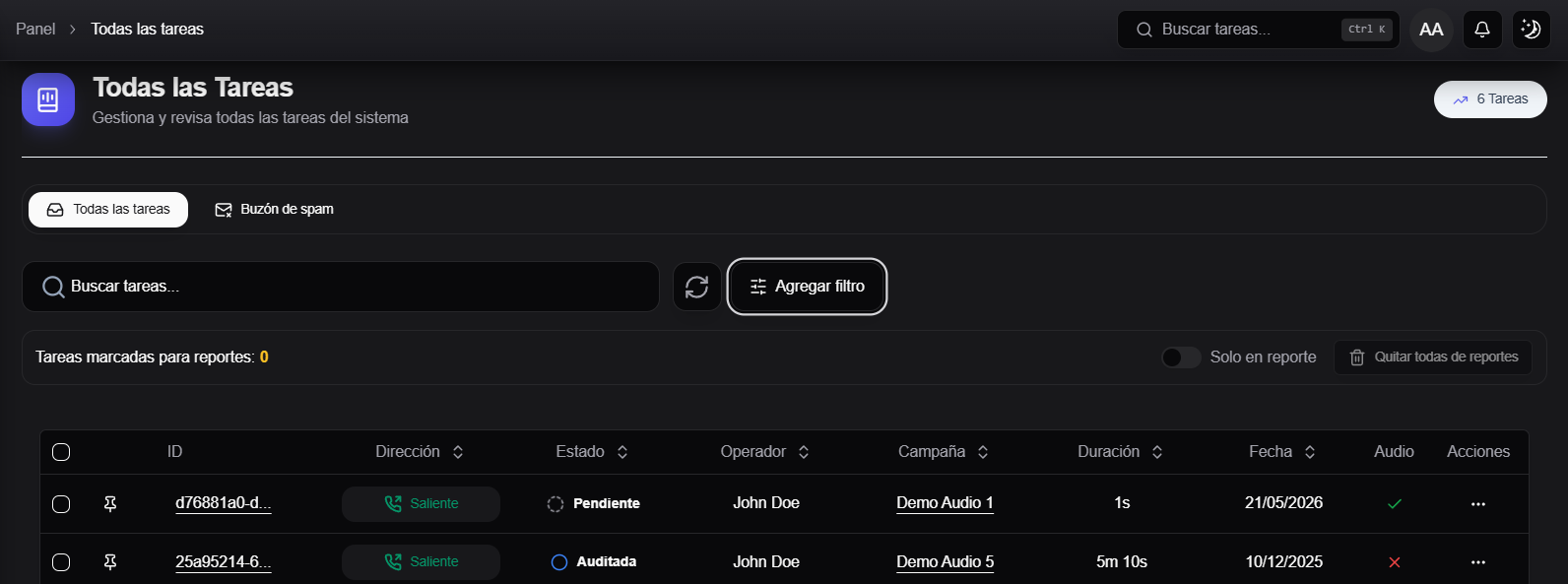
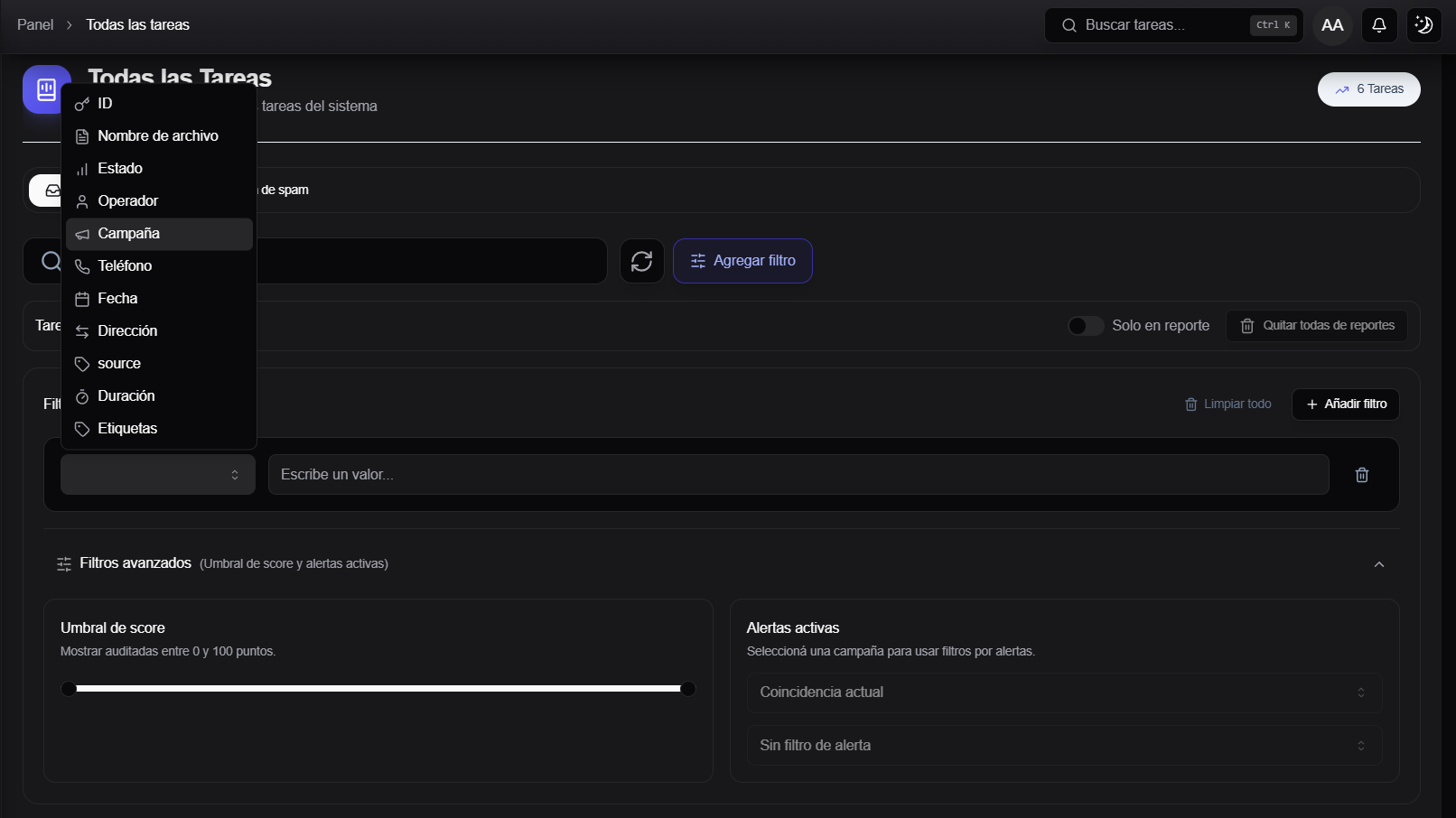
Common call filters include ID, file, status, operator, campaign, phone, date, direction, upload type, duration, tags, alerts, and in-report status.
Common chat filters include UUID, chat ID, date, source, operator, campaign, status, contact, alerts, and in-report status.
Fixed campaign filter
Some accounts open All tasks with a campaign filter already applied. This happens when your user can only see assigned campaigns. It does not mean search is broken; it means your view is limited by permissions.
Use pinned tasks
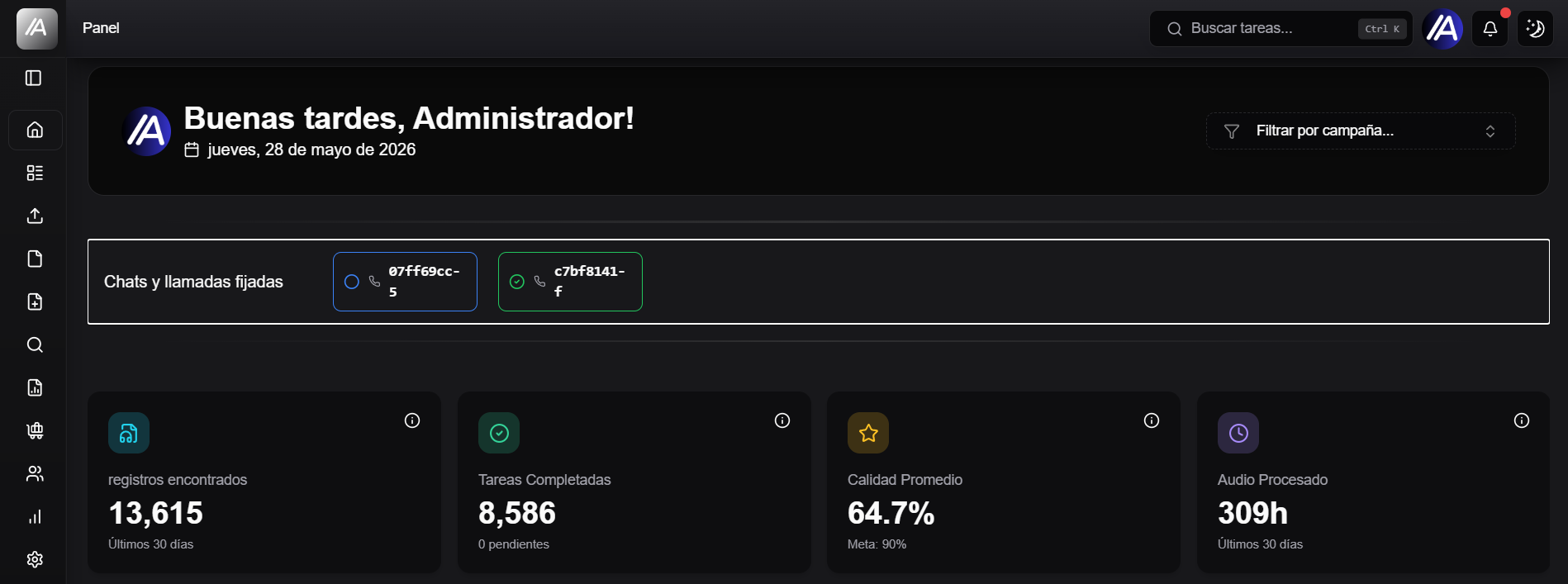
If a task is important or you want to return to it later, pin it. Pinned tasks can appear on the main panel or quick access sections depending on your configuration.

Search uploaded audio
Use Search audio when you want to find audio records already loaded into AuditorIA.
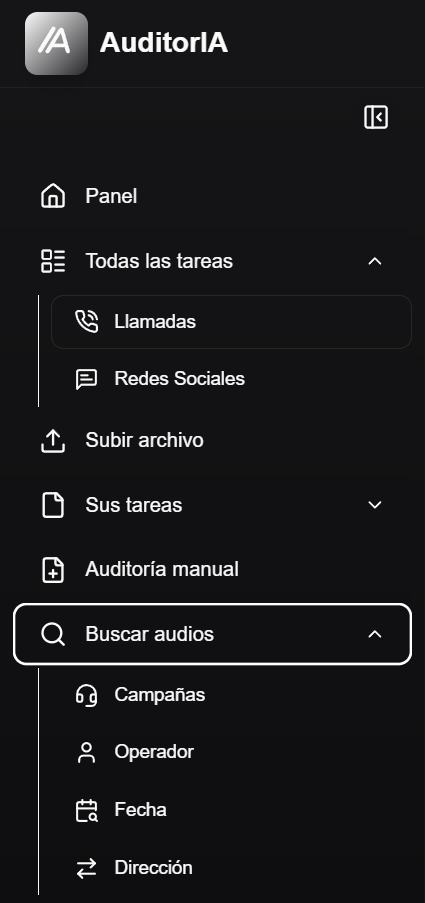
| Entry | What it asks for | When to use it |
|---|---|---|
| Campaign | Campaign ID or selection. | To find audio from a specific campaign. |
| Operator | Operator ID or selection. | To find audio associated with an audited person. |
| Date | Date or available range. | To search a specific day or period. |
| Direction | Inbound or outbound. | To separate received and made calls. |
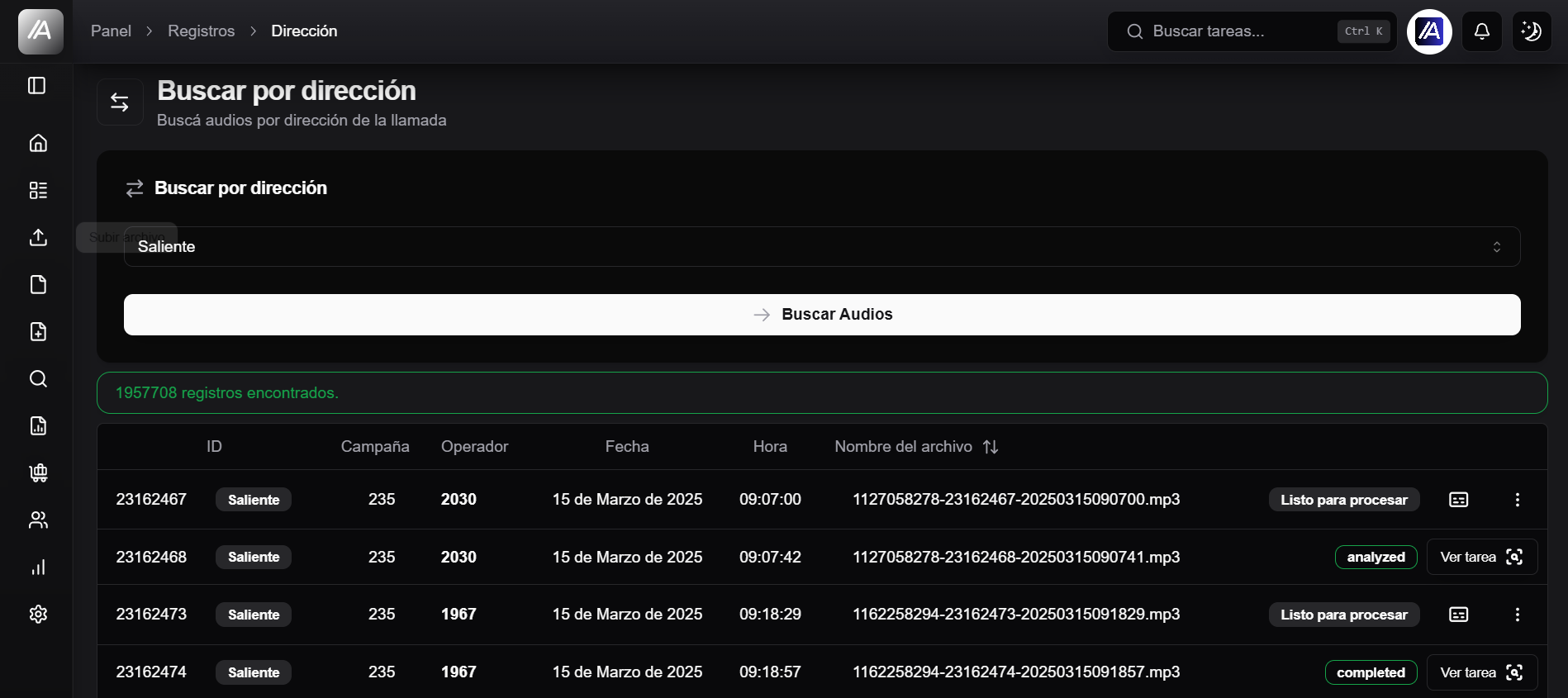
Audio actions
| If you see | Meaning | What to do |
|---|---|---|
| Transcribe audio | The audio is loaded but does not have a processed task yet. | Use it to start transcription and create the task. |
| View task | The audio already has an associated task. | Open it to review transcription and audit. |
| Audio not found | The record exists, but the audio file was not found. | Check with an administrator or technical team. |


If you cannot find the task or audio
Check whether filters are hiding the task, you are searching calls instead of chats, your user lacks campaign access, the task is not processed yet, the audio is not transcribed, the ID has a typo, the task is in spam, or the module is not enabled for your account.
If the audio is not loaded yet, start with Upload audio. If it is loaded but has no task, search the audio and use Transcribe audio when available.