Create manual audits
Manual audit is used to record an evaluation when you are not going to upload audio for AuditorIA to process automatically.
It is an alternative entry path to Upload audio: instead of uploading a file and waiting for transcription, you choose the operator, channel, campaign, and complete the quality scorecard directly.
Use it when the call or conversation was already reviewed outside AuditorIA, when the audio is not available in the app, or when you need to leave a manual evaluation recorded.
Manual audit does not upload audio or generate a transcription. The result starts as an audit already completed by a person.
Open Manual audit
In the sidebar, go to Manual audit.
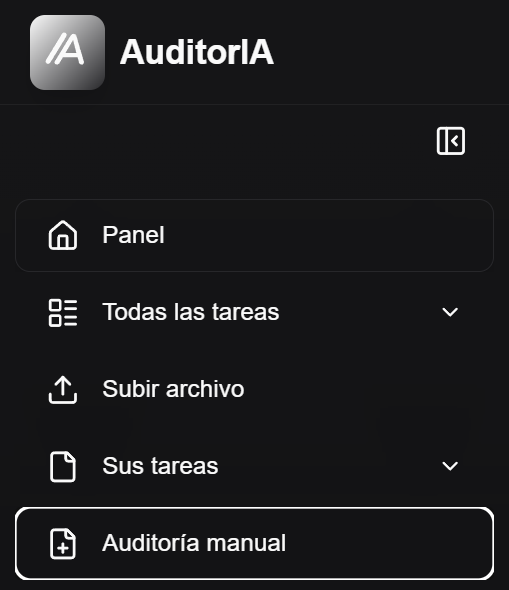
If you do not see this option, it may depend on the permissions configured for your user.
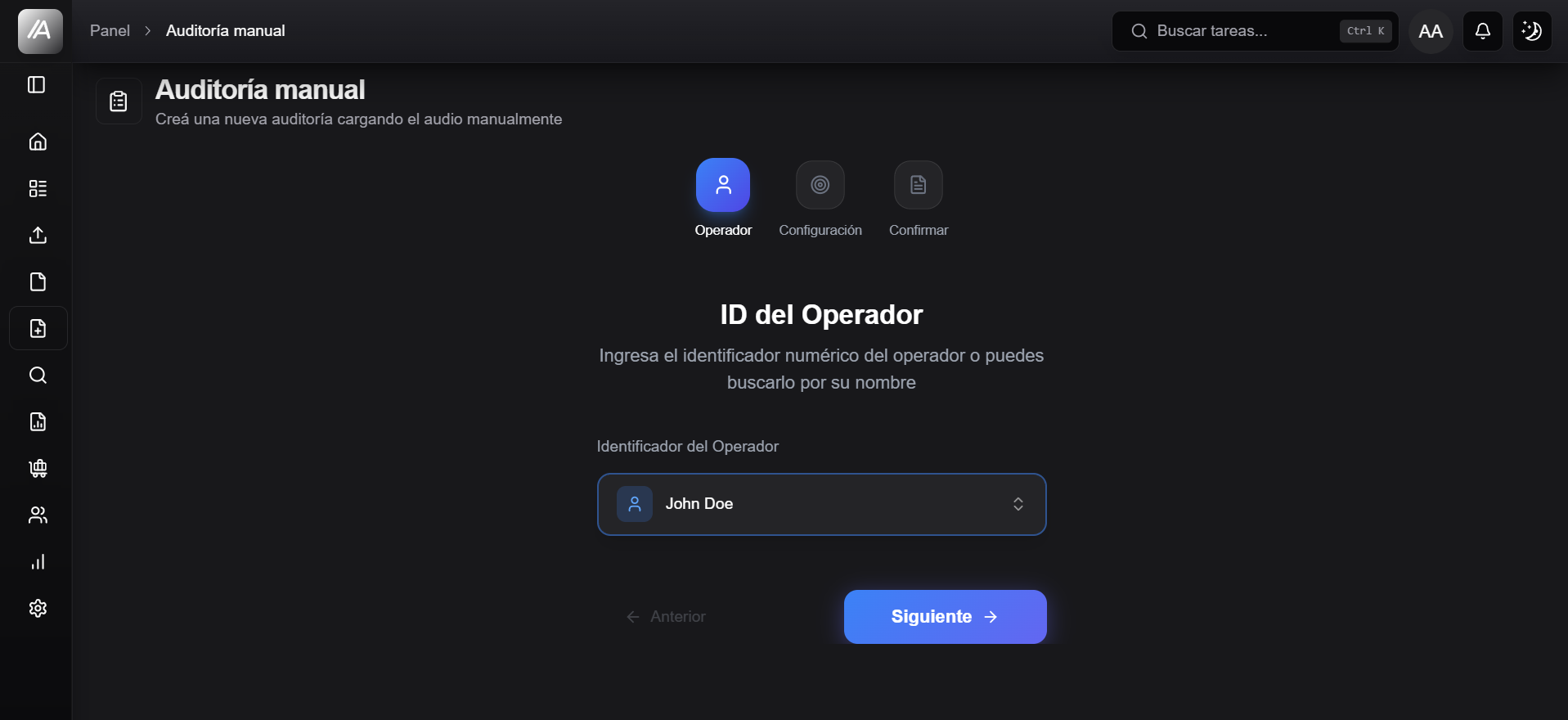
Complete the operator
In the first step, enter the operator ID for the person being evaluated.
Use the operator identifier exactly as configured in AuditorIA. If the operator does not exist or is not available for your user, ask whoever manages operators and campaigns.
Choose channel and campaign
In the second step, choose the channel:
- Calls, if you are recording a manual evaluation for a call.
- Social media, if you are recording a manual evaluation for a chat or conversation.
Then select the campaign.
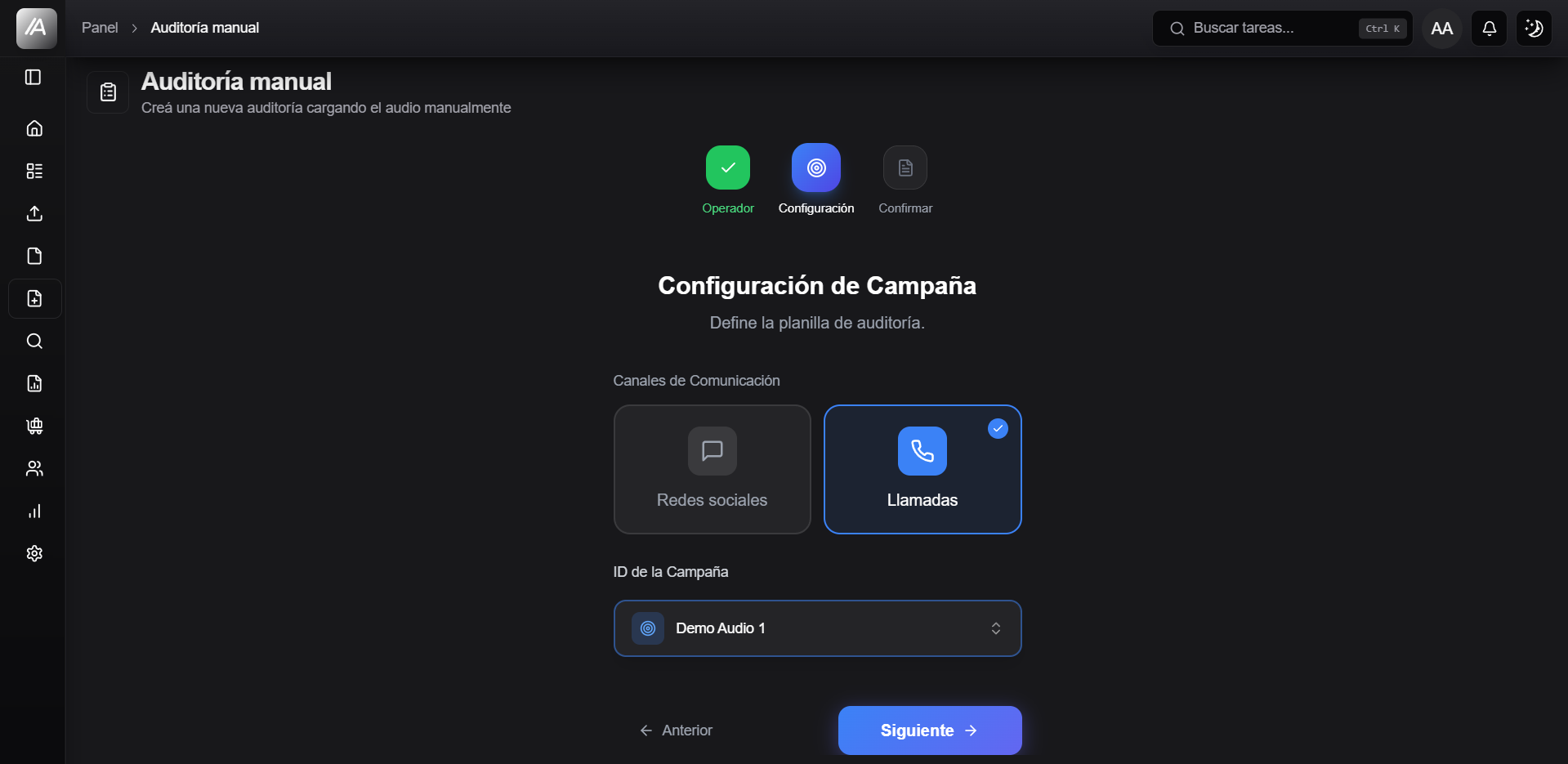
The campaign defines which quality scorecard will be loaded. If you choose another campaign, the criteria you need to evaluate may change.
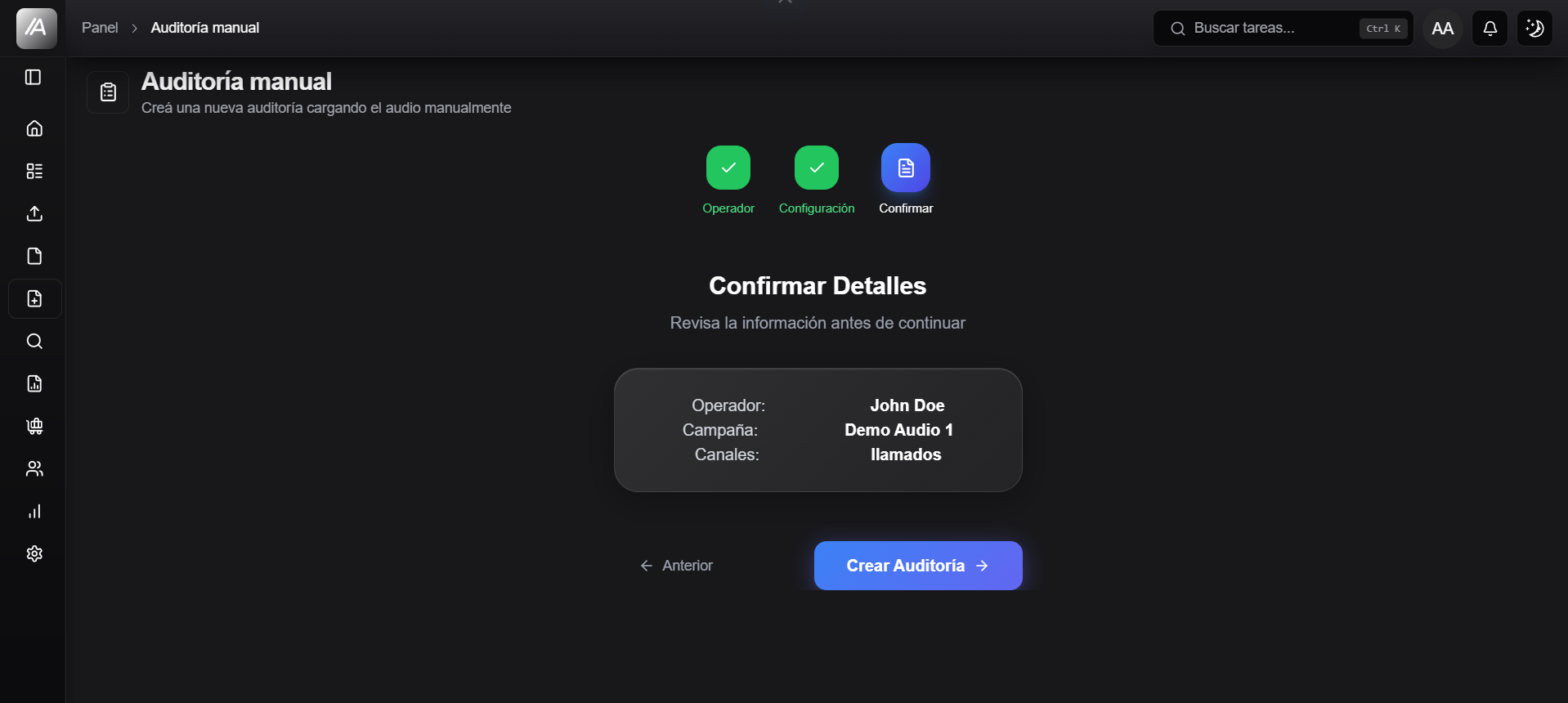
Review and continue
Before moving forward, check that the operator, channel, and campaign are correct.
If any of these values are wrong, go back to the previous step and correct them before completing the scorecard.
Complete the scorecard
AuditorIA shows the criteria configured for the selected campaign.
For each criterion:
- Indicate whether it complies or does not comply.
- If the criterion is conditional, confirm whether it should be evaluated.
- Add a brief explanation when it helps clarify the decision.
You can also add extra notes to leave general context for the evaluation.
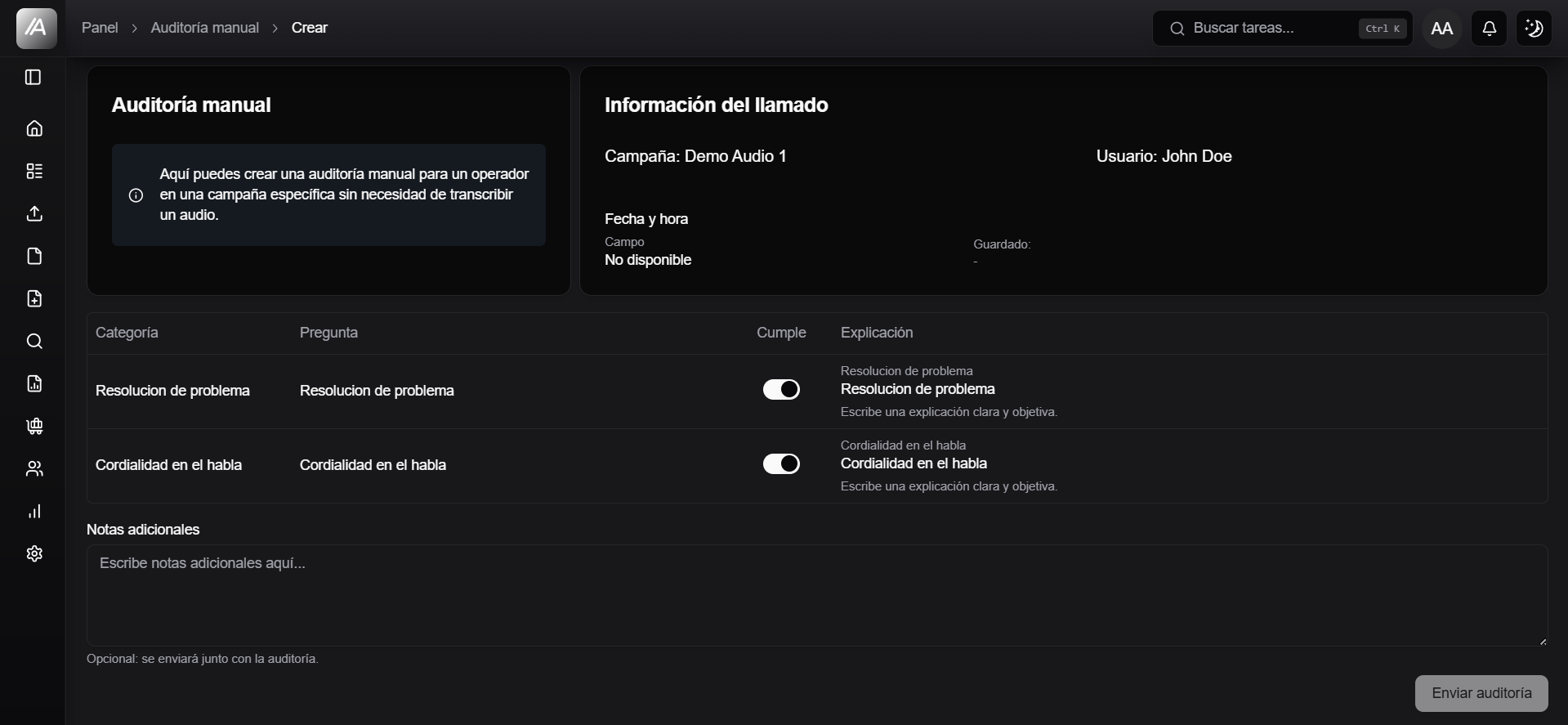
Write concrete explanations. Because this flow has no audio or transcription inside it, notes help another person understand why each criterion was marked.
Data you complete
| Data | What it is for |
|---|---|
| Operator | Identifies the person being evaluated |
| Channel | Defines whether the manual audit is for a call or social media |
| Campaign | Loads the scorecard and records the business context |
| Date and time | Indicates when the evaluation happened or is recorded |
| Chat ID | Only for social media; identifies the manual conversation |
| Criteria | Quality scorecard answers |
| Extra notes | General clarifications for the evaluation |
Save the audit
When you finish the scorecard, save the audit.
AuditorIA records the result as a manual audit in Audited status. The creation flow ends when you click Send audit, but the audit still has to be validated to be closed within the normal circuit.
Validation happens afterwards, from the audit review flow. In that step, the evaluation is confirmed as correct and the case is formally closed.
Where it appears afterwards
The result becomes available in different places depending on the selected channel:
| If you chose | It then appears as |
|---|---|
| Calls | A manually audited task, without audio or transcription |
| Social media | A manually audited chat |
In lists, these audits may appear with Upload type: Manual.
To find them later, use Search tasks and audios. From there you can filter by status, campaign, operator, or upload type.
Differences from uploading audio
| Upload audio | Manual audit |
|---|---|
| You upload one or more audio files | You do not upload audio |
| AuditorIA processes the file | A person completes the evaluation |
| A transcription is generated | No transcription is generated |
| The audit can be generated from processing | The audit starts completed manually |
| The case remains associated with the original audio | The case is recorded as manual |