Review a call audit
This guide explains how to review and validate the audit of a call that is already open in the transcription screen.
If you have not found the call yet, start with Search tasks and audio. If the call has not been processed or does not appear ready for auditing, review the audio upload and processing flow.
Before you start
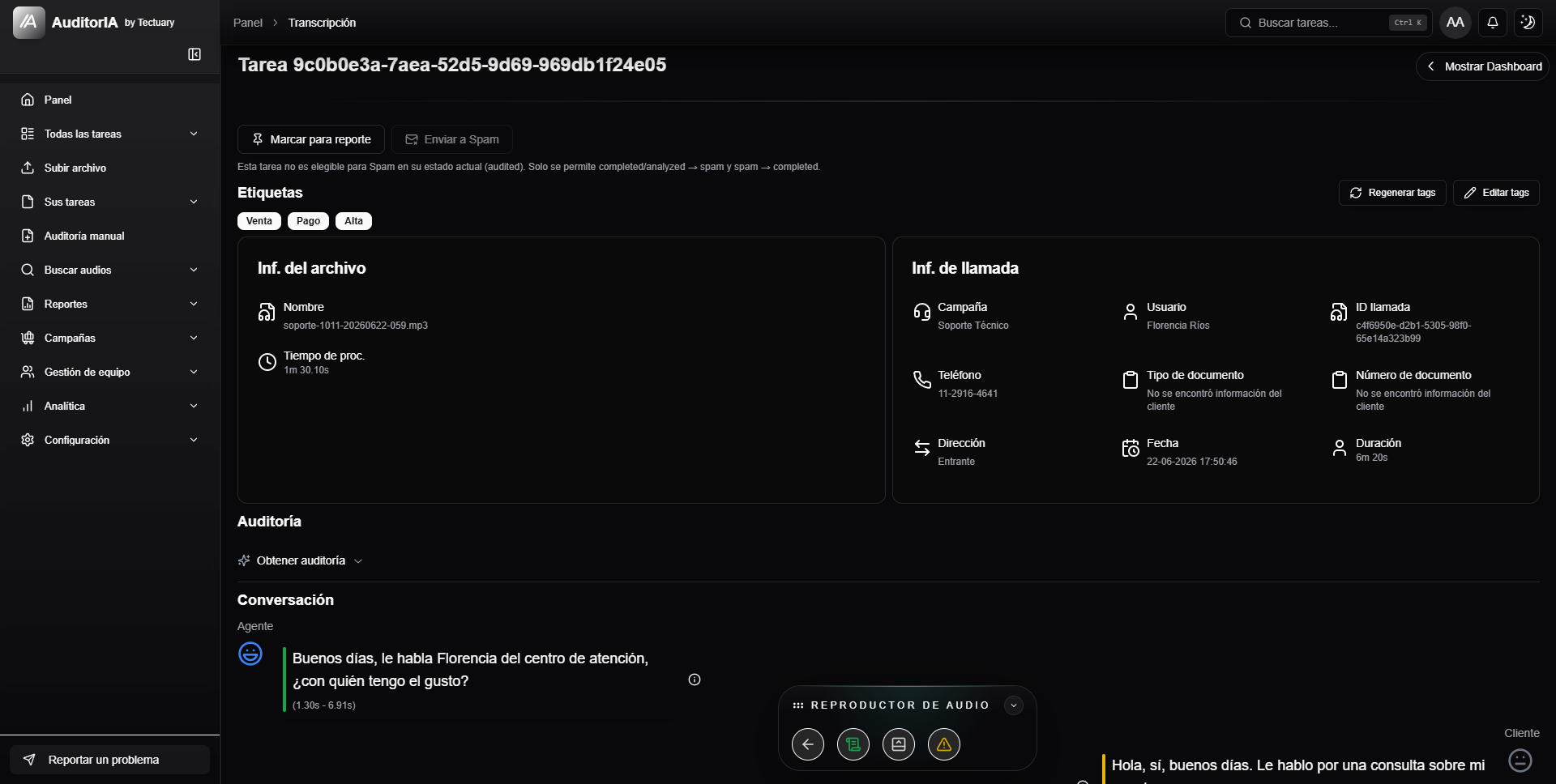
To audit a call, the task must already be processed. In general, you can work with calls in Completed, Audited, or Validated status, depending on what you need to do.
If the call appears as Pending or Processing, AuditorIA is still preparing the required information. Wait until processing finishes before trying to get the audit.
Some actions may not appear. This depends on your enabled permissions and on the current status of the call.
Review the call
Before validating an audit, review the main information on the screen:
- call details, such as operator, campaign, date, phone number, or identifier;
- audio player;
- transcription and conversation segments;
- available call analyses;
- audit/quality block.
The transcription and audio are not a separate workflow: they are the evidence you use to decide whether the audit correctly reflects what happened in the call. First confirm that you are reviewing the right operator, campaign, and case; then review the audit block together with the conversation.
Use audio and conversation as evidence
The call screen shows the conversation divided into segments. Each segment can include speaker, transcribed text, timestamps, emotions, or silence warnings, depending on the information available for that case.
Use this area to:
- listen to the audio section related to a doubtful point;
- compare a criterion explanation with what was actually said;
- locate silences, speaker changes, or relevant parts of the conversation;
- confirm whether an AI observation needs to be corrected before validation.
When a non-compliant criterion includes a minute or second of the call, use that reference to jump to the corresponding audio section. If there is no timestamp, review the criterion using the transcription and player as support.
Get or open the audit
In the call screen, find the Get audit block.
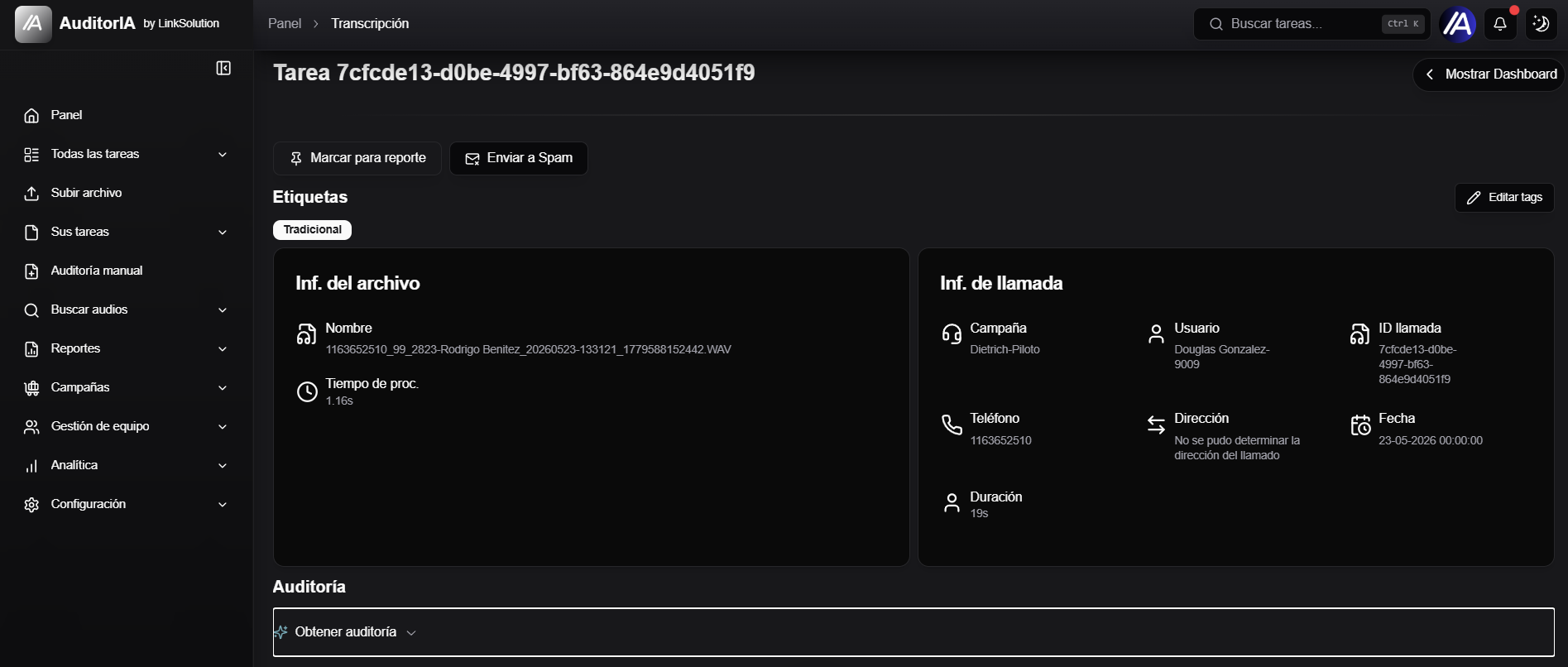
When you open it, two things can happen:
- if the audit did not exist yet, AuditorIA generates it from the transcription and the campaign quality scorecard;
- if the audit already existed, AuditorIA shows it directly.
The first time may take a few seconds. While the audit is generated or loaded, the screen may show messages such as Analyzing quality..., Evaluating compliance..., or Reviewing quality....
If an error appears, use Retry. If the error continues, check that the call has an operator, campaign, and quality scorecard configured.
Read the result
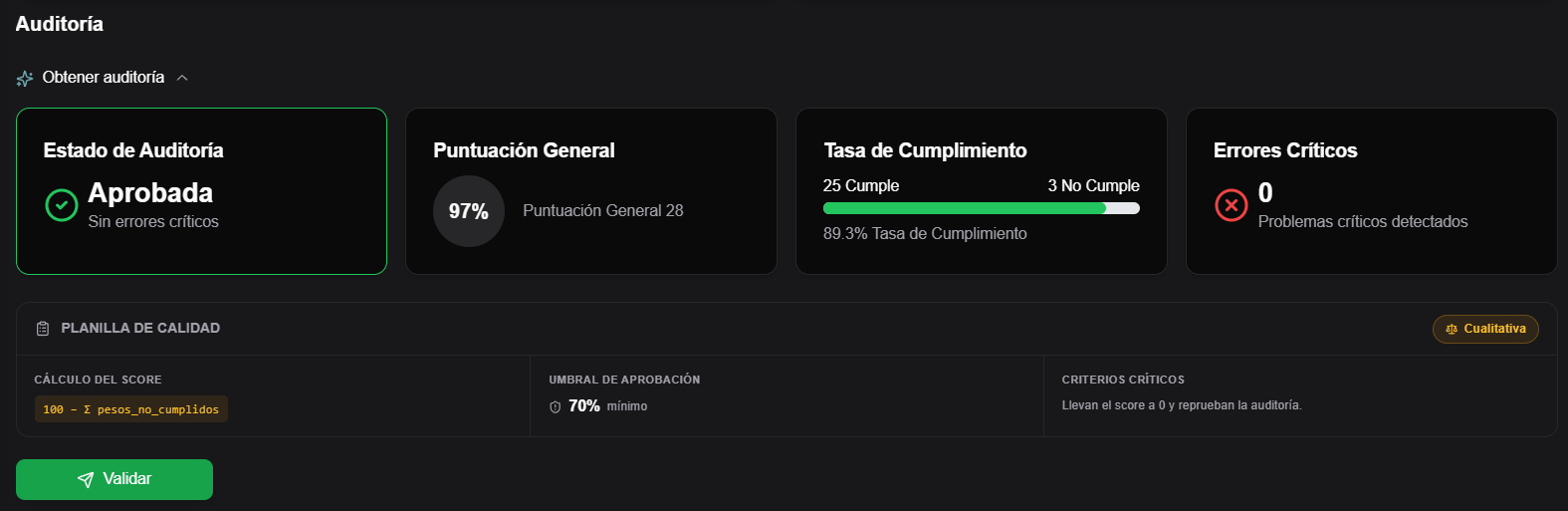
When the audit loads correctly, you will see a summary with information such as:
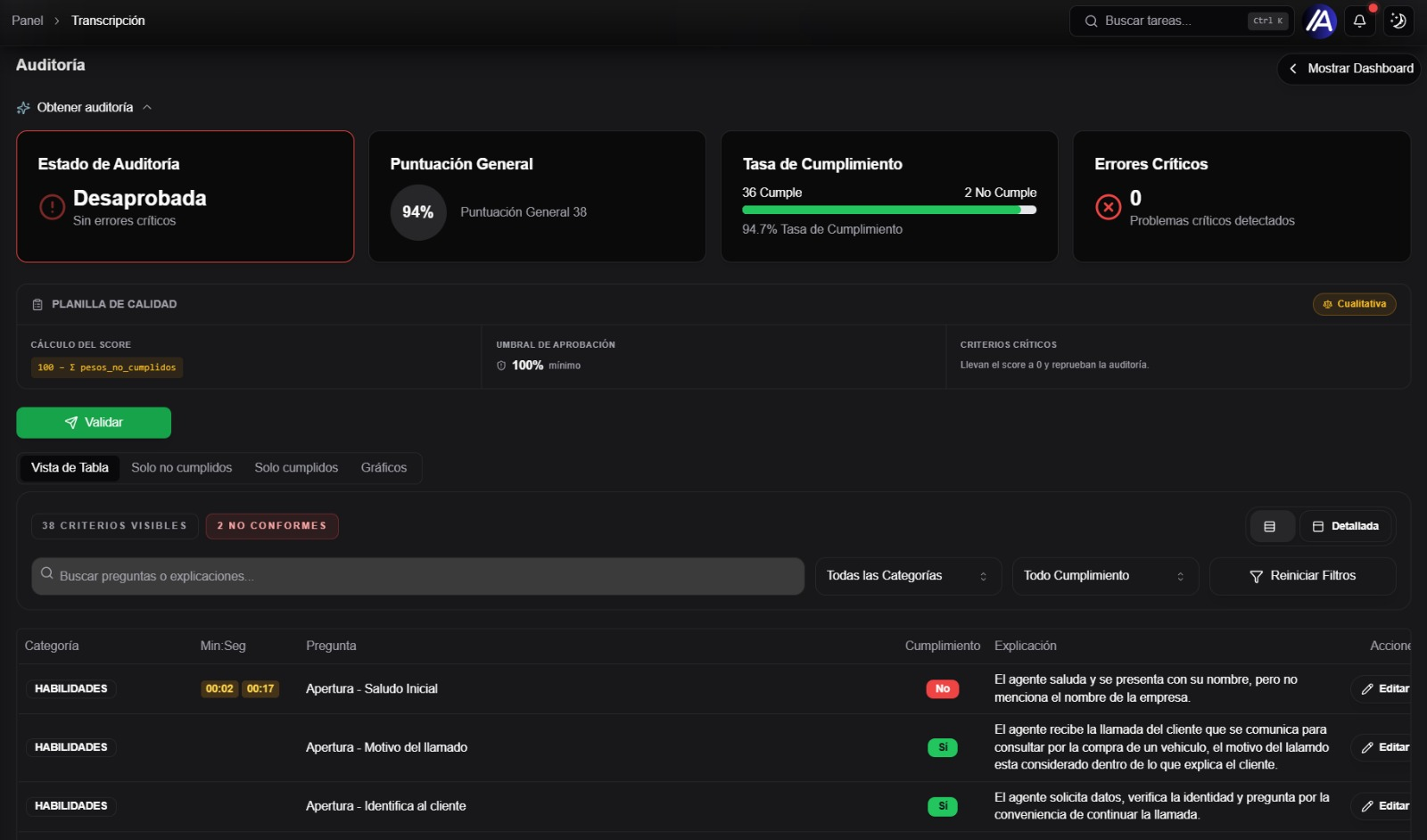
- Audit Status;
- overall result, such as Approved or Failed;
- General Score;
- Compliance Rate;
- Critical Errors, if any.
You may also see information about the quality scorecard used to calculate the result:
- evaluation mode, for example qualitative or quantitative;
- score calculation formula or criterion;
- minimum approval threshold;
- critical criteria behavior;
- total, valid, and not-counted criteria.
You will also see the evaluated criteria. Each criterion usually includes:
- category;
- evaluated question or criterion;
- whether it complies or not;
- explanation;
- minute or second of the call, when available;
- critical criterion label, if applicable.
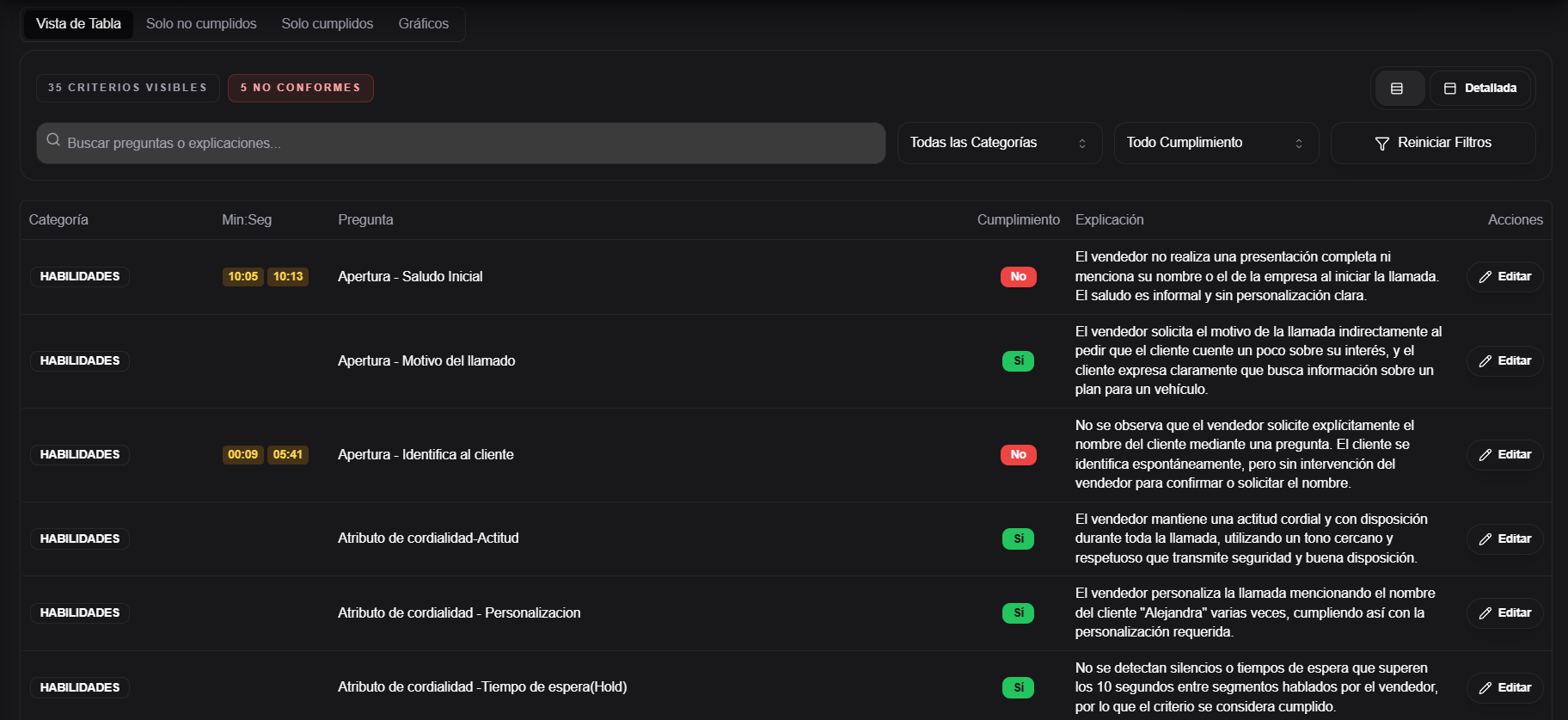
Use Table View, Only non-compliant, Only compliant, Charts, and Not counted to change how you review the audit.
The Not counted tab shows criteria that are kept for traceability but do not affect the score or compliance rate for that audit. Review them when you need to understand why a conditional rule was not counted.
Filter criteria
Inside the audit, you can filter criteria to review faster:
- use the search field to find questions or explanations;
- filter by category;
- filter by compliance;
- use Reset Filters to show all criteria again.
This is useful when the scorecard has many criteria or when you want to focus first on non-compliant items.
Add review notes
In some audits, you will see an Extra notes field. Use it to leave a general comment about the review before validating.
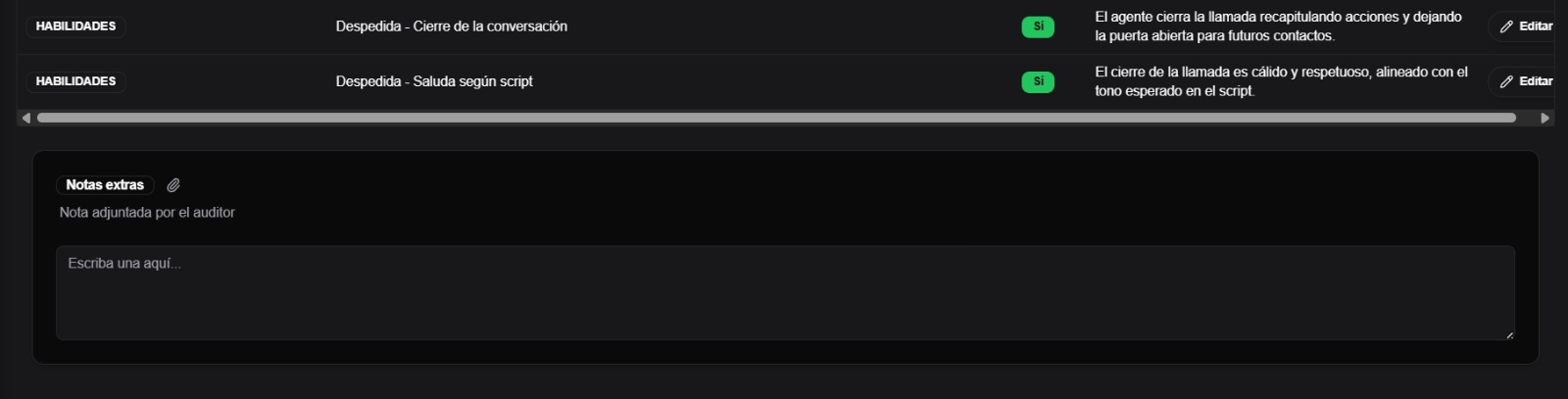
Notes are useful for context that does not belong to a specific criterion, such as an auditor observation, a clarification about the case, or something the audited person should consider together with the feedback.
When you validate, these notes are saved with the audit and may be included in the feedback that is sent.
Correct a criterion
If you detect that the AI-generated audit does not correctly reflect the call, you can correct a criterion before validating.
- Find the criterion you want to adjust.
- Click Edit.
- Review or change the category, question, compliance value, and explanation.
- Save the change with Save.
When you save, AuditorIA recalculates the result of that audit using the corrected criterion.

Criterion editing depends on permissions. If you do not see Edit, your user may not have that action enabled or the audit may already be validated.
Validate the audit
When you finish reviewing the audit and do not need more changes, click Validate.
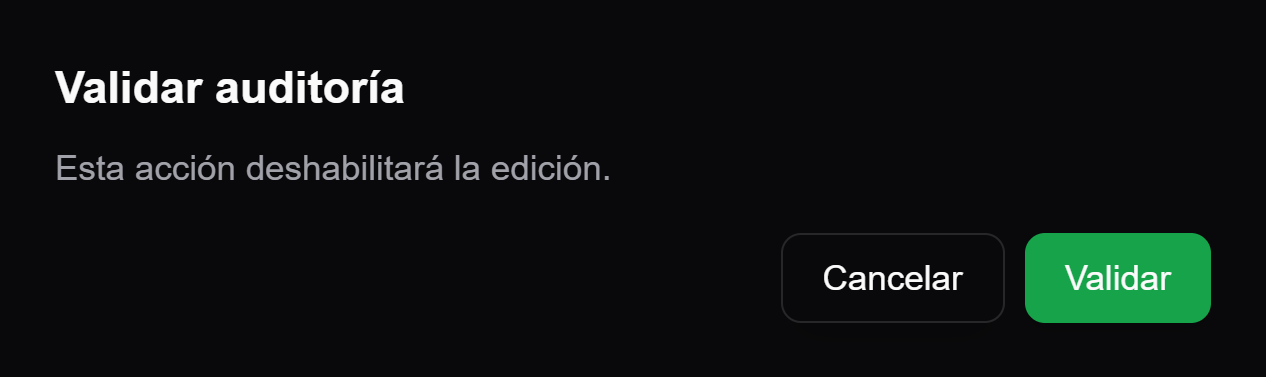
AuditorIA opens a confirmation called Validate audit. When you confirm, the audit is closed and editing is disabled.
After validation, the screen shows information such as:
- Audit validated;
- Validated by;
- Sent to operator;
- Validation date.
Validation records who closed the review and when. AuditorIA also tries to send the feedback to the operator and the supervisors configured for the campaign. If recipients are missing or there is a delivery problem, an error may appear and the operator or campaign configuration should be reviewed.
Validation is the step that makes the feedback ready for the audited operator.
Invalidate a validated audit
If an already validated audit needs to be reopened, the Invalidate action may appear.
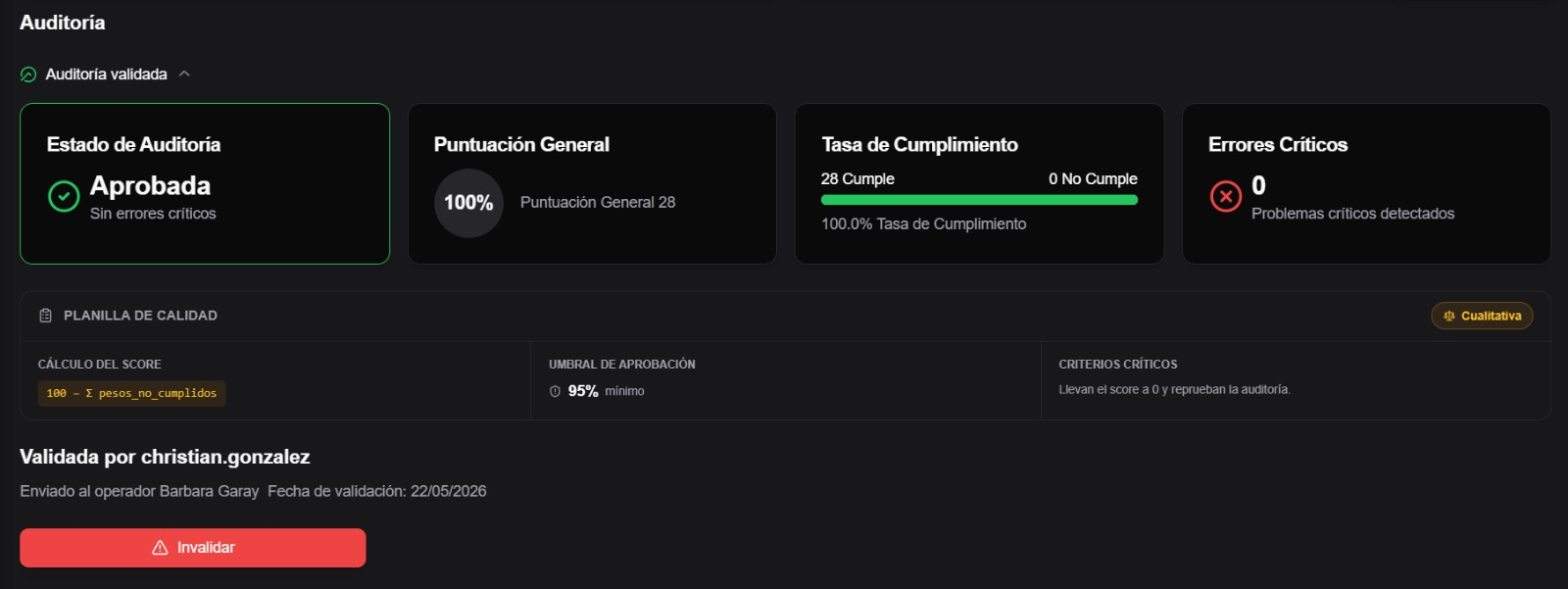
- Click Invalidate.
- Complete the Invalidation reason.
- Confirm the action.
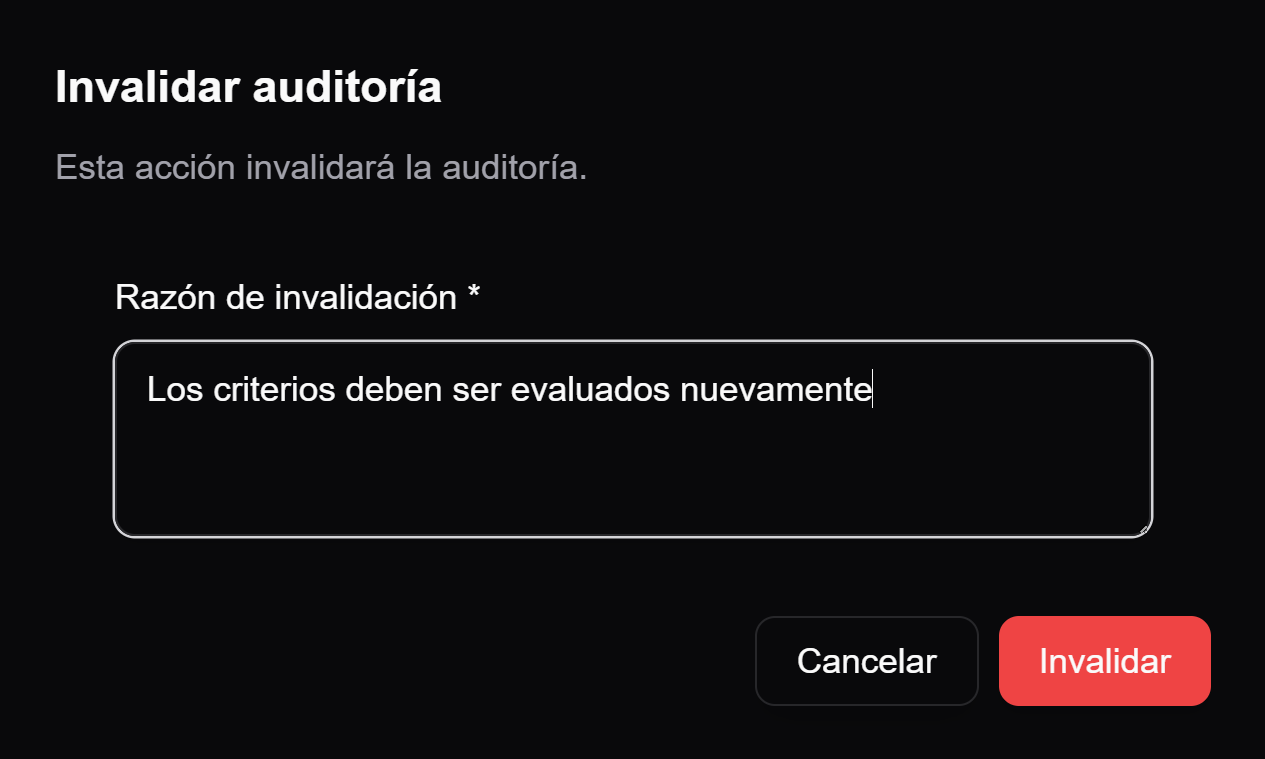
After invalidation, the audit becomes available for review again. Use this action only when you really need to correct an audit that had already been closed.
The invalidation reason remains associated with the action and can be used to explain why the audit returned to review.
Regenerate an audit
In some cases, AuditorIA may show a warning about outdated criteria. This can happen if the quality scorecard changed after the audit was generated.
If you have permissions, you will see Regenerate Audit. This action generates the audit again using the current criteria.
This is not a normal step for every audit. Use it only when an audit should be recalculated with an updated scorecard.
If something is missing
If you do not see an expected button or section, check these possibilities:
- your user does not have permission for that action;
- the call has not finished processing;
- the call does not have a campaign, operator, or quality scorecard configured;
- the call was classified as spam and therefore does not show the audit block;
- recipients are missing for sending the feedback during validation;
- the audit was already validated and can no longer be edited;
- the action only appears in specific cases, such as regenerating an audit with outdated criteria.