Quality scorecards
Quality scorecards define the criteria used to evaluate a campaign. Each criterion indicates what AuditorIA or the auditor should review, how much it contributes to the result, and what happens when it is not met.
This page explains how to access the section, choose a channel, create or edit a scorecard, work with criteria, save versions, and understand how those changes affect future and existing audits.
When to use this section
Use Quality scorecards when you need to:
- create criteria for a new campaign;
- review or adjust criteria of an existing campaign;
- change the evaluation mode;
- define the minimum passing score;
- configure critical criteria, conditions or alerts;
- review previous versions of a scorecard;
- activate a specific version for new audits.
Visible options may vary depending on permissions. If you do not see an action, ask the person who manages AuditorIA access in your organization. See I cannot see an option the manual mentions.
Relationship with campaigns
The campaign indicates which group of calls or chats the case belongs to. The scorecard indicates how quality is evaluated within that campaign.
Therefore, when creating a scorecard, AuditorIA may ask you to:
- choose an existing campaign;
- create a new campaign from the same flow;
- choose whether you will work with calls or social media.
If you are configuring a campaign from Campaign configuration, you can also reach the scorecard from the Scorecard section or the criteria block.
If you are still unsure which settings a campaign needs, first review Campaign configuration. Then return to this page to complete the quality criteria.
Open Quality scorecards
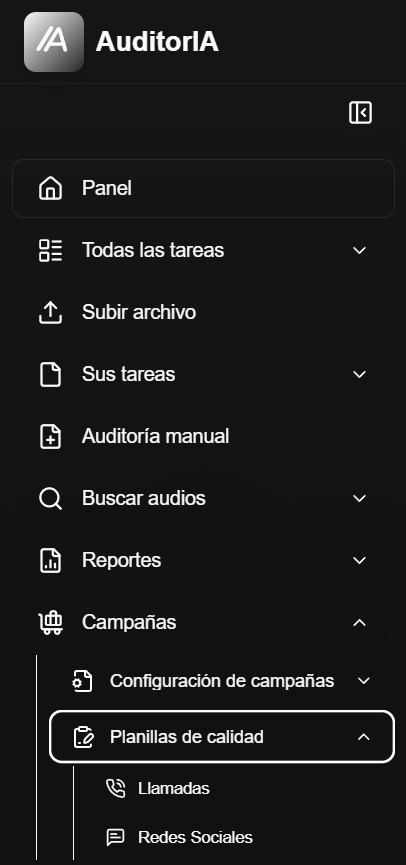
- In the sidebar, open Campaigns.
- Select Quality scorecards.
- Choose Calls or Social media, if the app displays separate channels.
- Search for an existing scorecard or use the button to create a new one.
The list shows the scorecard or associated campaign name, the number of criteria, last-updated information, and actions for viewing details or editing.
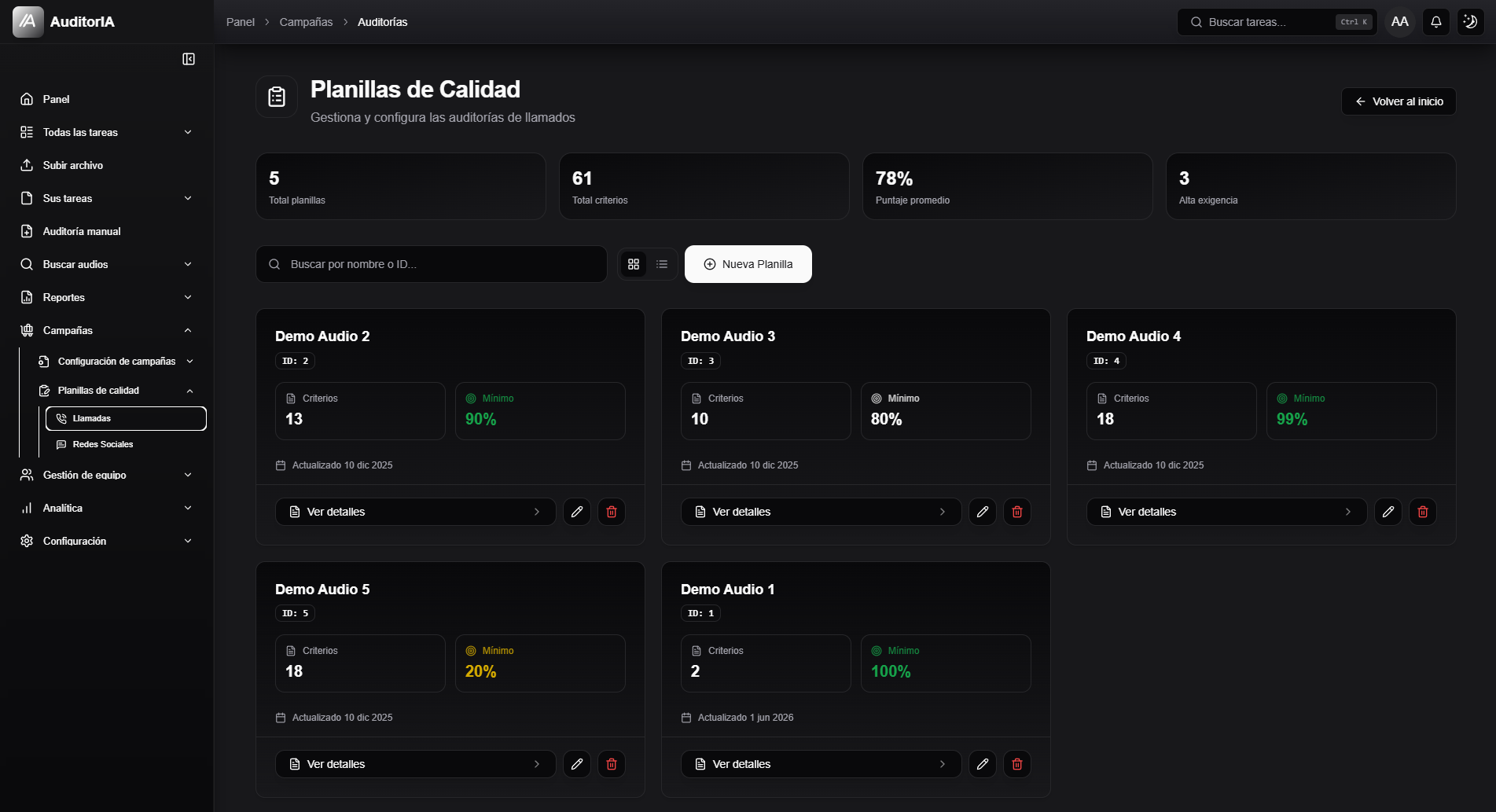
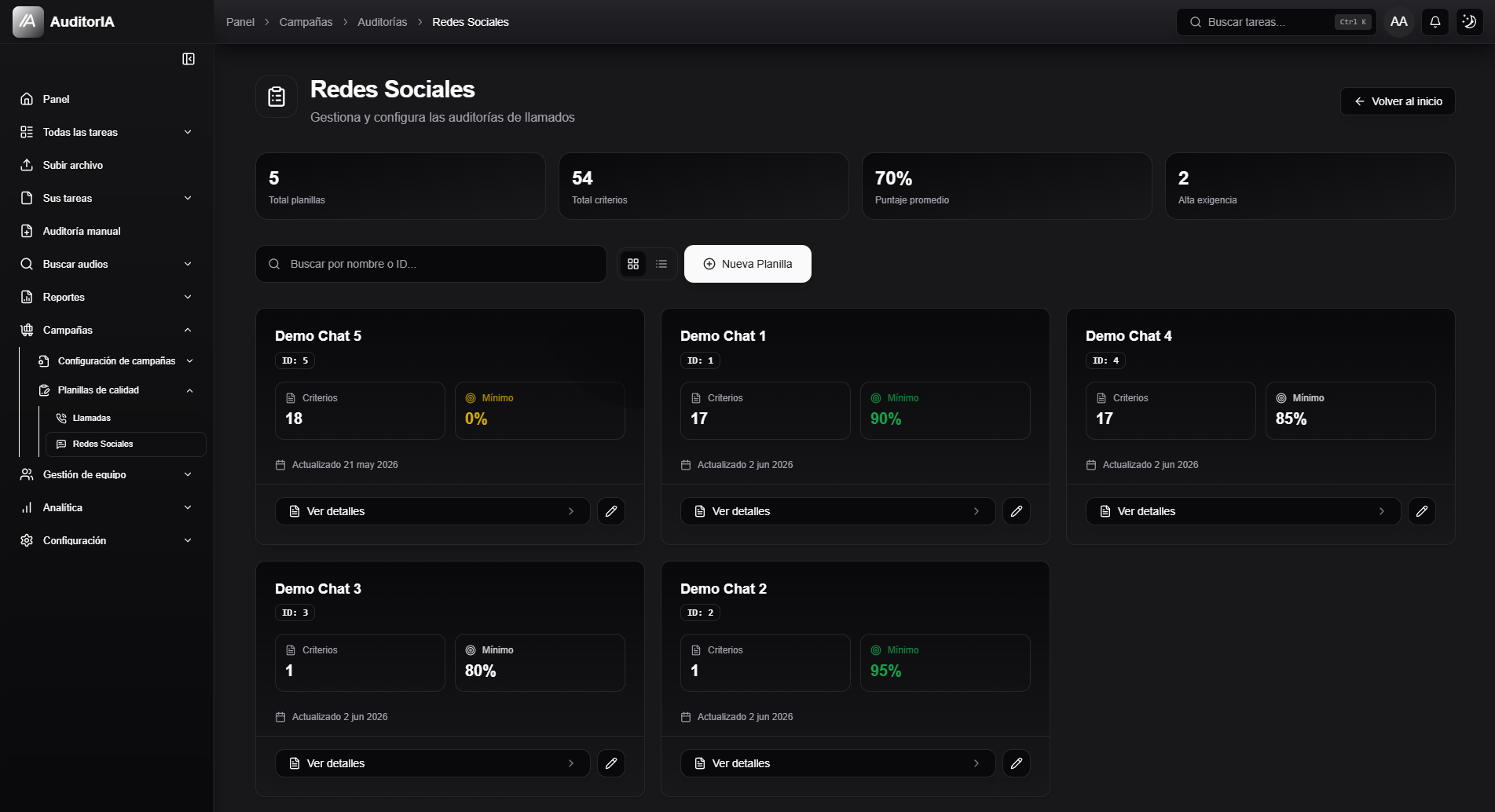
If you see a minimum percentage in the list, take it as the approval threshold associated with the campaign or current version. Do not confuse it with the individual score of a criterion.
Calls and social media
The concept is the same for both channels: a scorecard contains criteria for a campaign. What changes is the type of conversation evaluated and some available conditions.
| Channel | What evaluates | Important differences |
|---|---|---|
| Calls | Audio files, transcriptions, and call tasks. | You can use call-specific conditions, such as direction, voicemail, tags, or keywords. |
| Social media | Chats or written conversations. | Focuses on messages, tags, keywords, and written-response criteria. |
Do not copy call criteria to social media without reviewing them. A criterion about spoken interaction may need different wording for chats.
Create a scorecard
- Click New scorecard or the equivalent button.
- Choose an existing campaign or select New campaign.
- If you chose New campaign, complete the base data.
- Define the evaluation mode.
- Add quality criteria.
- Review the summary and validations.
- Save the scorecard.
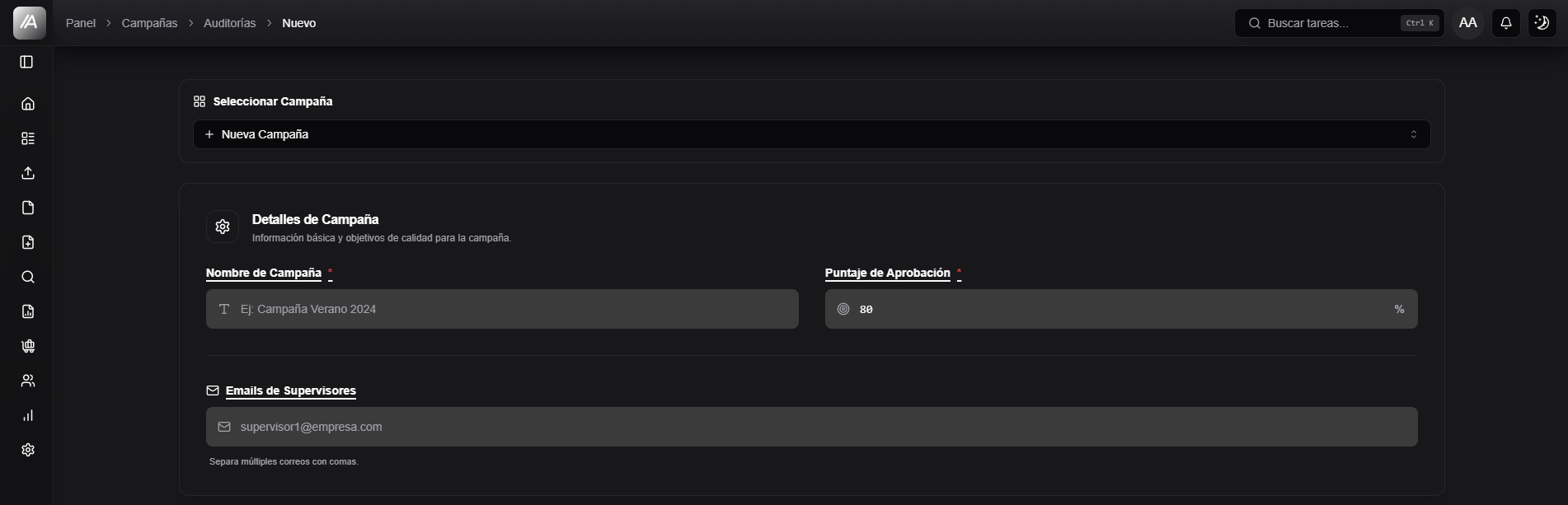
Campaign details
When the scorecard workflow creates or completes a campaign, the following fields may appear:
| Field | What it is for |
|---|---|
| Campaign name | Identifies the campaign in lists, filters, and audits. |
| Passing score | Defines from which score an audit is approved. |
| Supervisor emails | Receive a copy when the result of an audit is sent. |
| Tag Generation | Defines whether tags are generated by AI, entered manually, or created through a hybrid approach. |
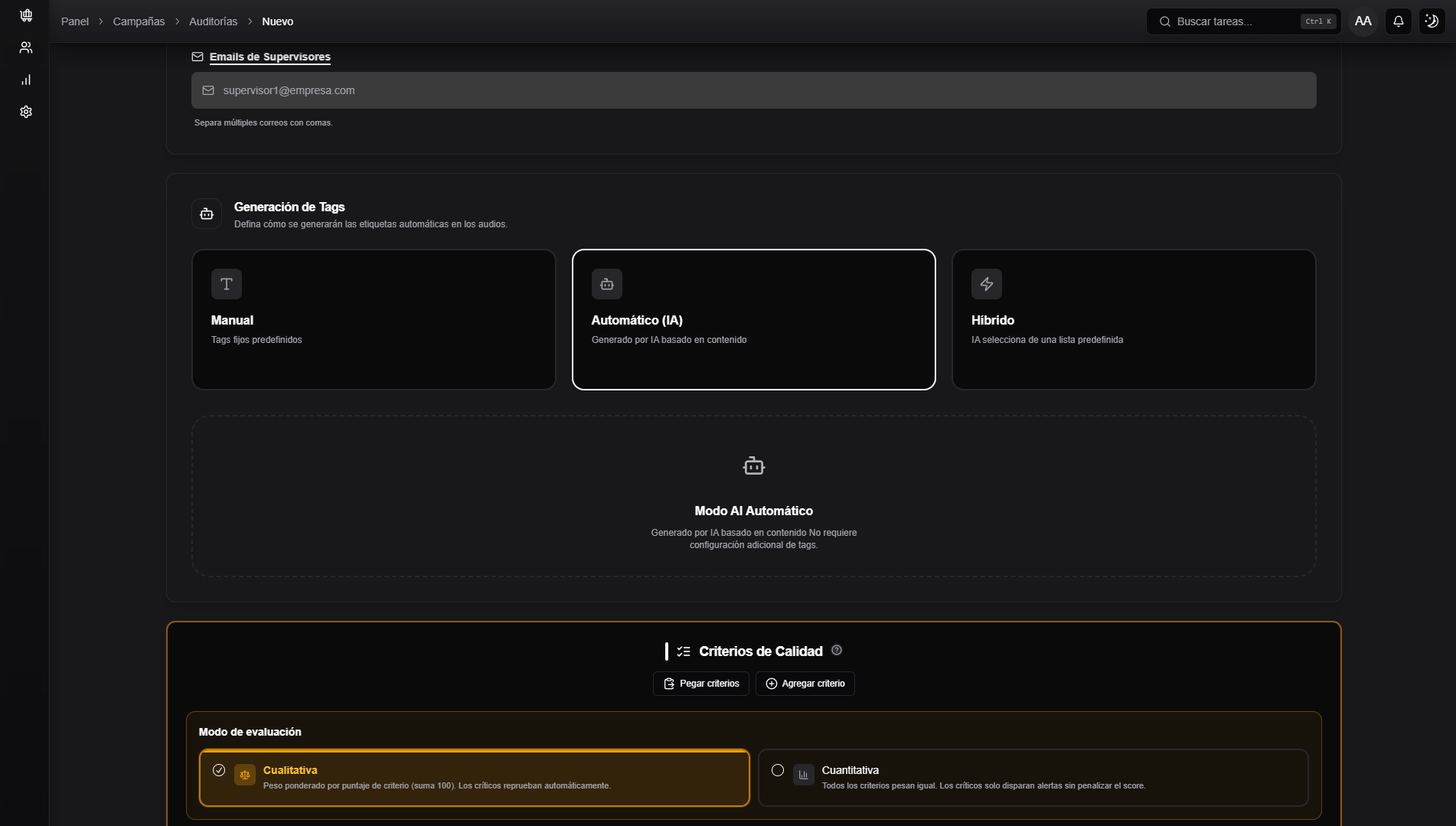
Choose evaluation mode
AuditorIA offers two modes: Qualitative and Quantitative.
Qualitative
Use Qualitative when some criteria outweigh others.
Each criterion has its own score, and the total must equal exactly 100. If it does not, the scorecard cannot be saved.
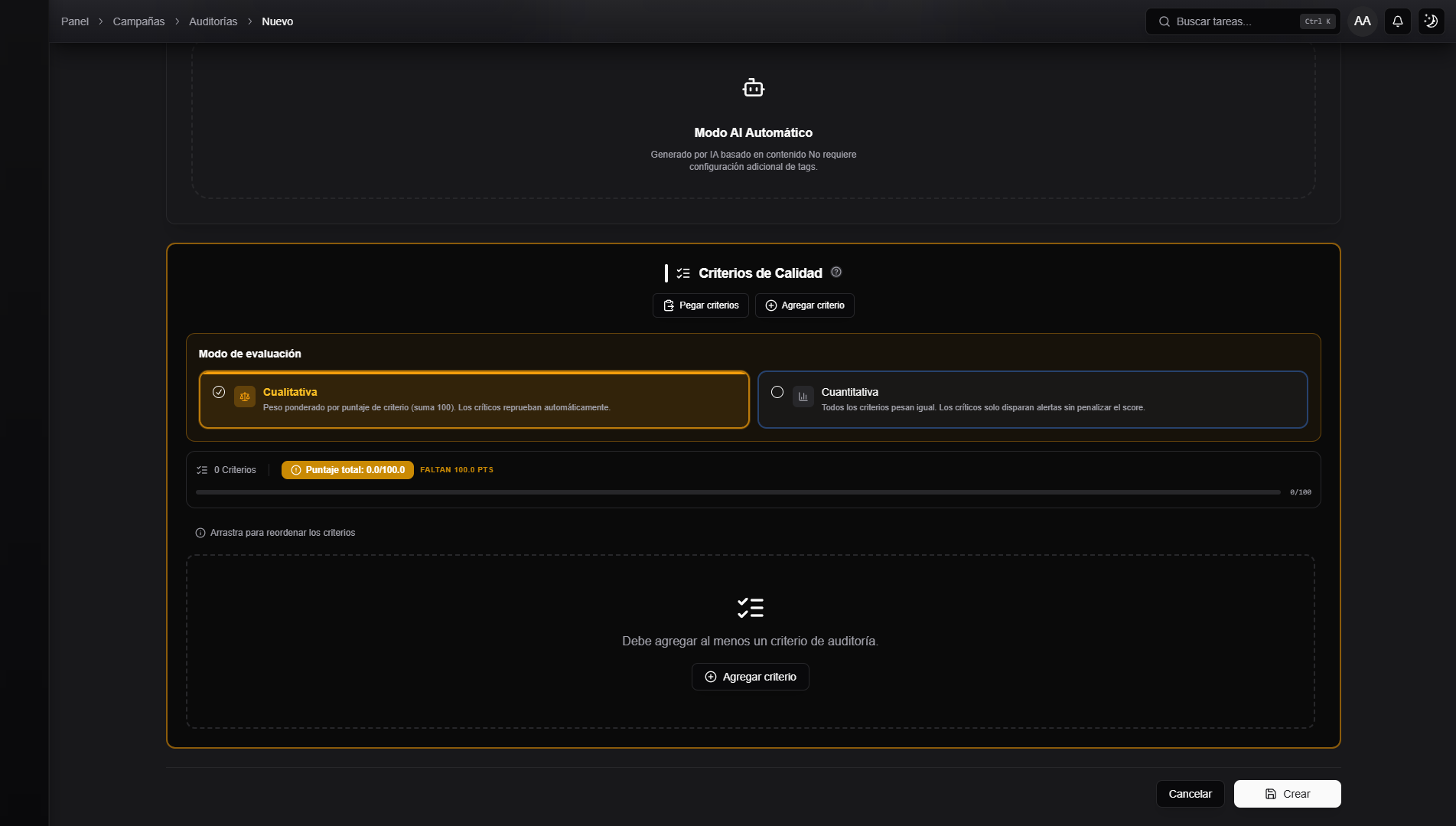
Example:
| Criterion | Score |
|---|---|
| Resolve the reason for contact | 40 |
| Verify customer data | 20 |
| Maintain a courteous tone | 20 |
| Close the interaction correctly | 20 |
| Total | 100 |
In this mode, if a counted critical criterion is not met, the score becomes 0 and the audit fails.
Quantitative
Use Quantitative when all criteria are equally important.
The score is calculated from the number of criteria met out of the total criteria counted:
Score = (criteria met / criteria counted) * 100
In quantitative mode, the critical flag does not change the score calculation. The criterion is calculated like any other counted criterion, and the flag only triggers alerts if the campaign has an alert rule that enables them. See Campaign settings.
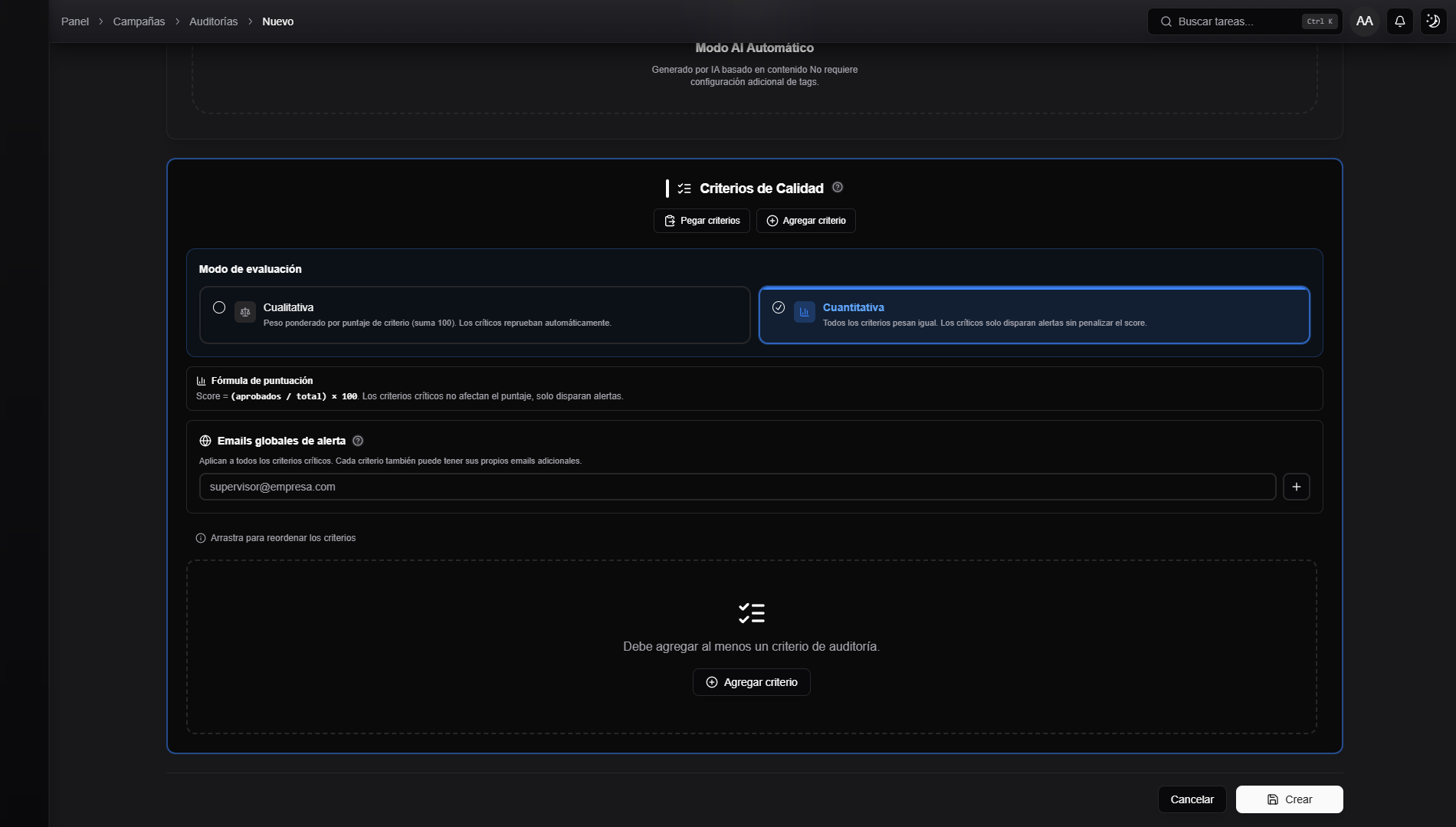
If you change the evaluation mode in a scorecard that already has criteria, AuditorIA may ask for confirmation. The change affects future audits; saved audits retain the version and result with which they were generated.
Complete criteria
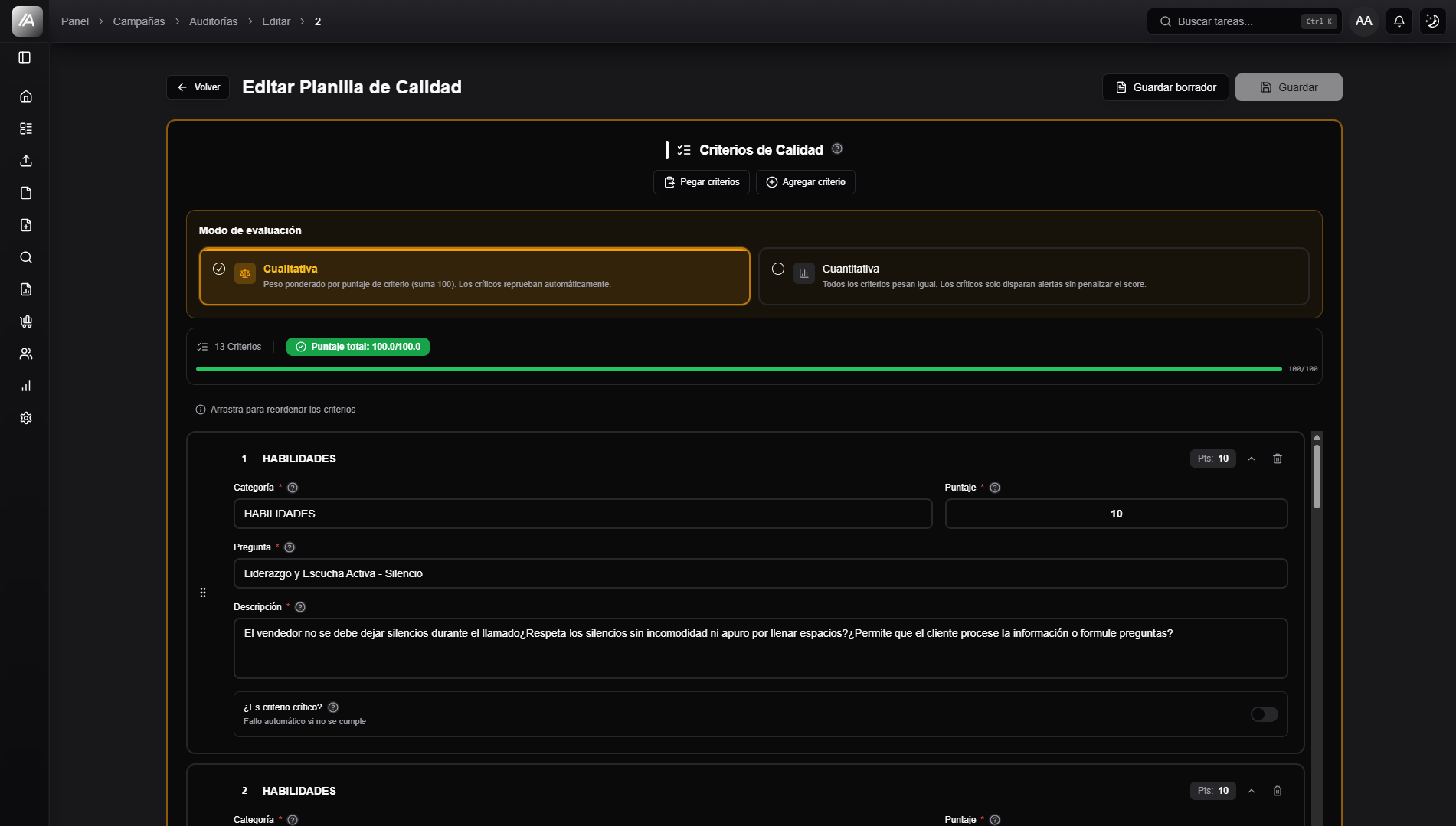
Each criterion is a question that is answered during the audit.
| Field | What to complete | Mandatory |
|---|---|---|
| Category | Criterion group, for example Greeting, Resolution, Closure. | Yes |
| Question | A question that can be answered as met or not met. | Yes |
| Description | Concrete guide to evaluate the criterion. | Yes |
| Score | Weight within the score. | Only in qualitative |
| Counts toward score | Determines whether the criterion is included in the score. | Depends on configuration |
| Is critical | Marks the criterion as sensitive. | No |
| Conditions | Define when the criterion applies. | No |
| Alerts | Email or in-app notifications when a critical criterion fails. | Depends on the mode |
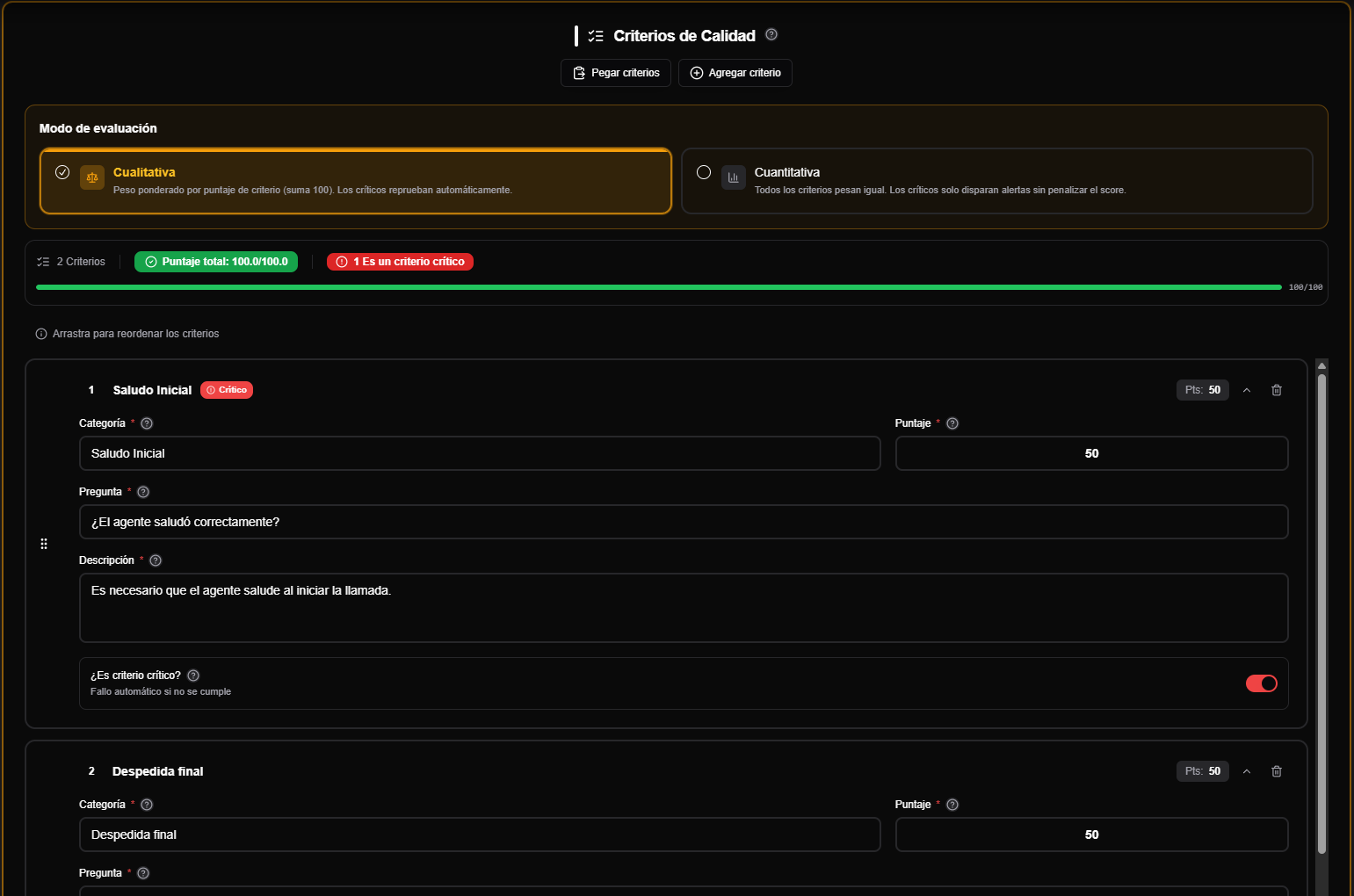
A good question should be answerable without lengthy interpretation. The description should explain what evidence is expected.
Add, sort or paste criteria
To add criteria manually:
- Click Add criteria.
- Complete category, question and description.
- If you are in qualitative mode, enter the score.
- Mark Is critical only if noncompliance requires a special consequence.
- Reorder the criteria if you need to change how they appear.
You can also use Paste criteria to load a list from an external spreadsheet. The recommended method is to copy cells from Excel or Google Sheets, which places tabs between columns. The importer also accepts commas, but it is a simple parser and does not correctly handle quoted commas inside a cell.
Category<TAB>Question<TAB>Description<TAB>Score<TAB>Critical
Do not include a header row. To mark a criterion as critical, use si, yes, true, or 1 in the fifth column.
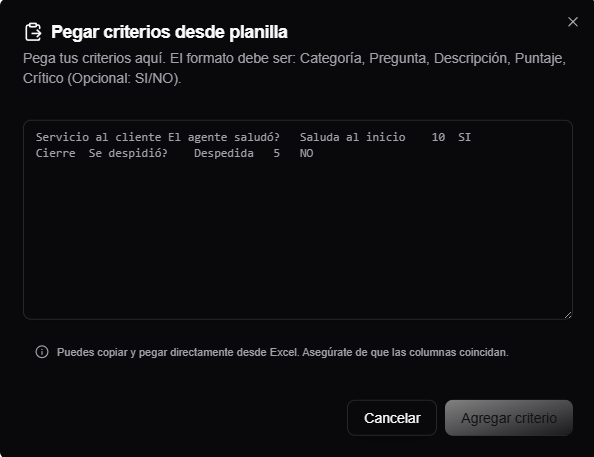
After pasting, review each criterion before saving. Pasting speeds up data entry, but does not replace validation.
Critical criteria, alerts and conditions
Critical criteria are used for sensitive points: compliance, serious errors, lack of identity validation or situations that require follow-up.
| Configuration | Impact |
|---|---|
| Counted critical criterion in qualitative mode | If it is not met, the score becomes 0 and the audit fails. |
| Critical in quantitative mode | Does not change the score formula. When it is not met, it triggers email or in-app alerts only if the campaign has an alert rule with that channel enabled. |
| Global alert emails | Receive alerts for the campaign's critical criteria. |
| Email alerts | Receive alerts only for that criterion. |
| In-app notification | Creates a notice within AuditorIA when the criterion fails. |
| Condition | Makes the criterion apply only in certain cases. |
Conditions prevent a criterion from being counted when it does not apply. For example, it may apply only with certain tags, keywords, call directions, or voicemail detection.
When a condition is not met or data is missing, the criterion may be marked Not counted. It remains traceable but does not affect the score or compliance rate.
Error and validation summary
When editing, AuditorIA can display a summary of errors for the form. Use it to jump directly to the criterion with the problem.
The most common errors are:
- empty category, question or description;
- a score total other than
100in qualitative mode; - incomplete conditional criterion;
- invalid alert emails;
- unnamed version when saving changes, if required.
Don't save a scorecard just because it "looks complete." Review the summary and confirm that the critical criteria, conditions and alerts are consistent.
Scorecard versioning
Scorecards have versions. When relevant changes are saved, AuditorIA can create a new version with a name and description.
Do not confuse Save draft with saving a version: the draft remains only in this browser and does not change the server-side scorecard. When saving changes, Save creates a version without activating it; Save and Activate creates the version and makes it active for future audits.
In the detail or edit view, you may find:
| Element | What it is for |
|---|---|
| Active version | Version that will be used for new audits. |
| Version selector | Allows you to review previous versions. |
| Save new version | Records changes with a name and description. A new version is created by any change to the criteria, the passing score, the supervisor emails, the evaluation mode, or the alert and tag settings. |
| Activate version | Defines which version remains valid for future audits. |
| History | Shows versioning events. |
| Version differences | Compares two versions side by side. You have to select both: until then the panel stays empty. |
When creating a new scorecard, you can start from a template if a suitable one is available. This is optional: you can also start without a template and add or paste your own criteria.
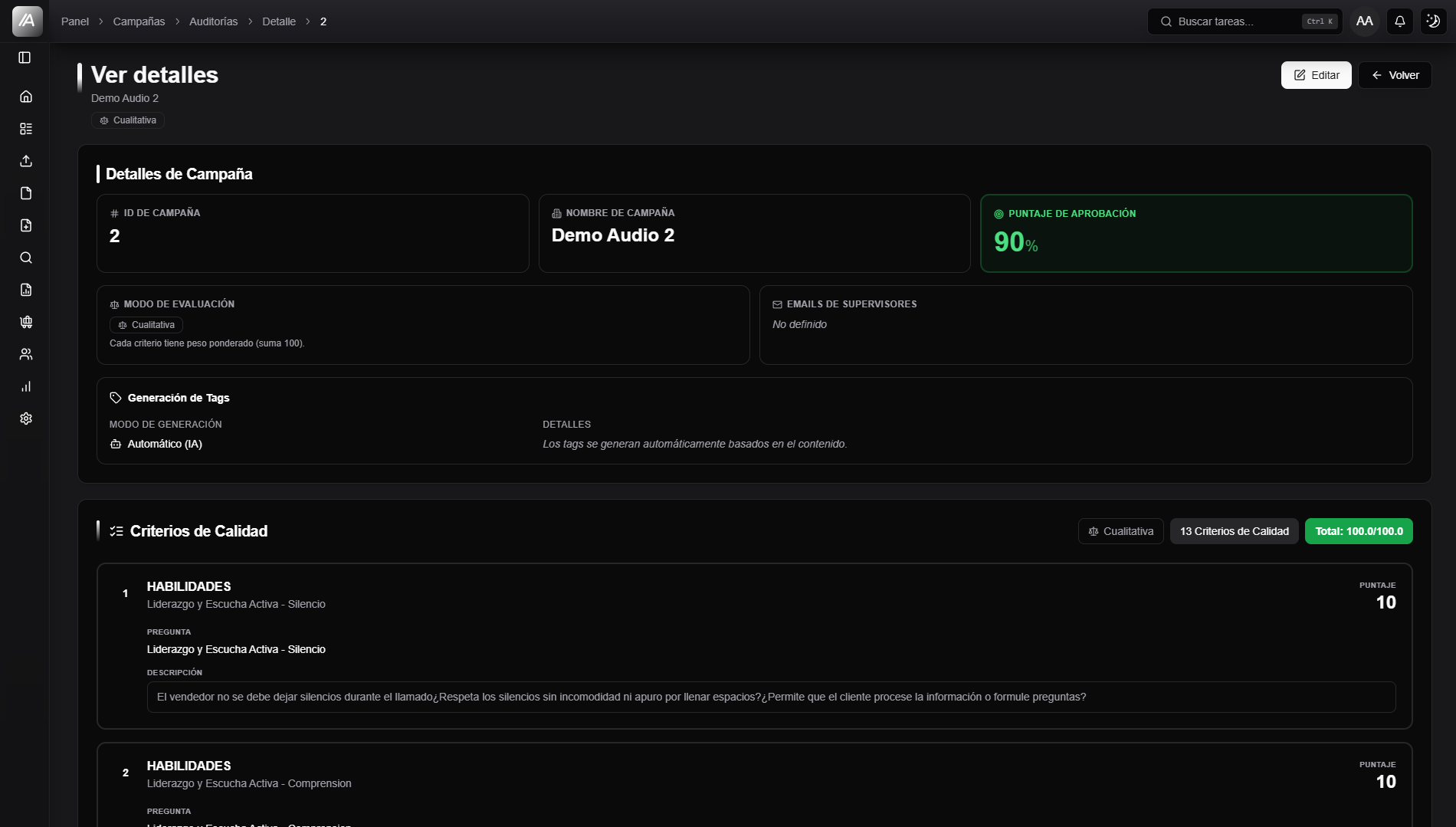
An audit that has already been generated keeps the scorecard version used at that time. If you later activate another version, the viewer warns that the audited version differs from the active version and blocks direct editing. To recalculate it, use Regenerate with active sheet: it only works on audits in Audited state, because Validated ones are skipped.
Save and review
Before saving:
- Check all criteria.
- Confirm that the total is
100in qualitative mode. - Review criticality, alerts and conditions.
- Add version name and description when the flow requests it.
- Decide if that version should remain active.
- Save.
Afterwards, open the detail to confirm that the scorecard was associated with the correct campaign and that the active version is the expected one.
How it impacts other flows
| Flow | Impact |
|---|---|
| Upload audio | The selected campaign determines which scorecard is used for the audit. |
| Create manual audits | The criteria are loaded from the active scorecard of the selected campaign. |
| Review a call audit | The result depends on the scorecard version used to generate that audit. |
| Review a chat audit | Applies the campaign's social media scorecard. |
| Reports | Scores, compliance, critical errors, and uncounted criteria come from audits generated with these scorecards. |
Common problems
I cannot save a qualitative scorecard
Review the total score. It must equal exactly 100.
I need to complete the description
The description of the criterion is mandatory. AuditorIA uses it as a guide to evaluate consistently.
Calls and social media do not show the same conditions
This is expected. Some conditions apply only to calls. In social media, conditions focus on chat content, tags, or keywords.
A manual audit does not show the expected criteria
Verify that you chose the correct campaign and that that campaign has the expected active version for the correct channel. If it does not match, open the scorecard, pick the version in the selector and use Activate version: that defines which one is used from then on, without touching audits that were already generated.
I changed the scorecard but an old audit did not change
Saved audits retain the version used. For an old case to reflect the new scorecard you have to regenerate it, and that is only possible if the audit is in Audited state: Validated ones are skipped.
The viewer blocks editing an audit
It can happen for two different reasons, and each one is solved differently. If the audit was validated, you have to invalidate it before editing it again. If it was generated with a version other than the active one, the viewer shows a version notice and the way out is to regenerate it with the active scorecard. See Review a call audit.